Tokens are a fun, in-app way for clubs to track friendly stakes and add a little extra excitement to games. They are not currency, have no monetary value and cannot be bought, sold, withdrawn, or exchanged for real money.
Tokens are provided for entertainment purposes only and are not intended to be used for real money betting or gambling. Tokens exist only as a way for players within a club to keep track of friendly games between people who know and trust each other.
Kelly Pool Tracker provides record keeping tools only but does not act as a wallet, payment provider, or holder of player funds. Kelly Pool Tracker does not manage, monitor, or participate in any agreements between players.
By enabling tokens for your club, you accept responsibility for how they are used within your club. Kelly Pool Tracker is not responsible for disputes, losses, misuse, or loss of records relating to token activity.
If you assign other members as club administrators and grant them permission to distribute tokens or create matches with token stakes, you remain responsible as the club owner for the access you have provided and how those permissions are used within your club.
Your clubs complete token history — including stakes, payouts, and adjustments — can be exported as a CSV file from the Club screen, allowing you to maintain your own records.
Welcome to Kelly Pool Tracker! 🎱
You're signed in with Google. Pick a display name other players will see you by.
Rename Club
All matches, stats, and token history stay with the club — only the name changes.
5–30 characters
Edit Display Name
This is the name other players and club members see you as.
➕ Add Members
Enter an existing member's Display Name, or an email address. If they don't have an account yet, we'll email them a link to sign up — they'll be added automatically once they do.
⚠️ Delete Club
This deletes — every match, frame, stat, and token record it has ever had. This cannot be undone.
Enter your Local Account Password to confirm:
Type the club's name () to confirm:
⚠️ Delete Account
This deletes your account and removes you from every club you're a member of. Any club you own is deleted too. Your past matches stay in other players' history, but your name on them is replaced with DELETED USER. This cannot be undone.
Enter your Local Account Password to confirm:
Type your display name () to confirm:
Details
Role
Choose this member's role in the club.
Tokens
Current balance: 0 🪙
0 🪙
Who potted it?
Game Mode Rules
Mark as not potted?
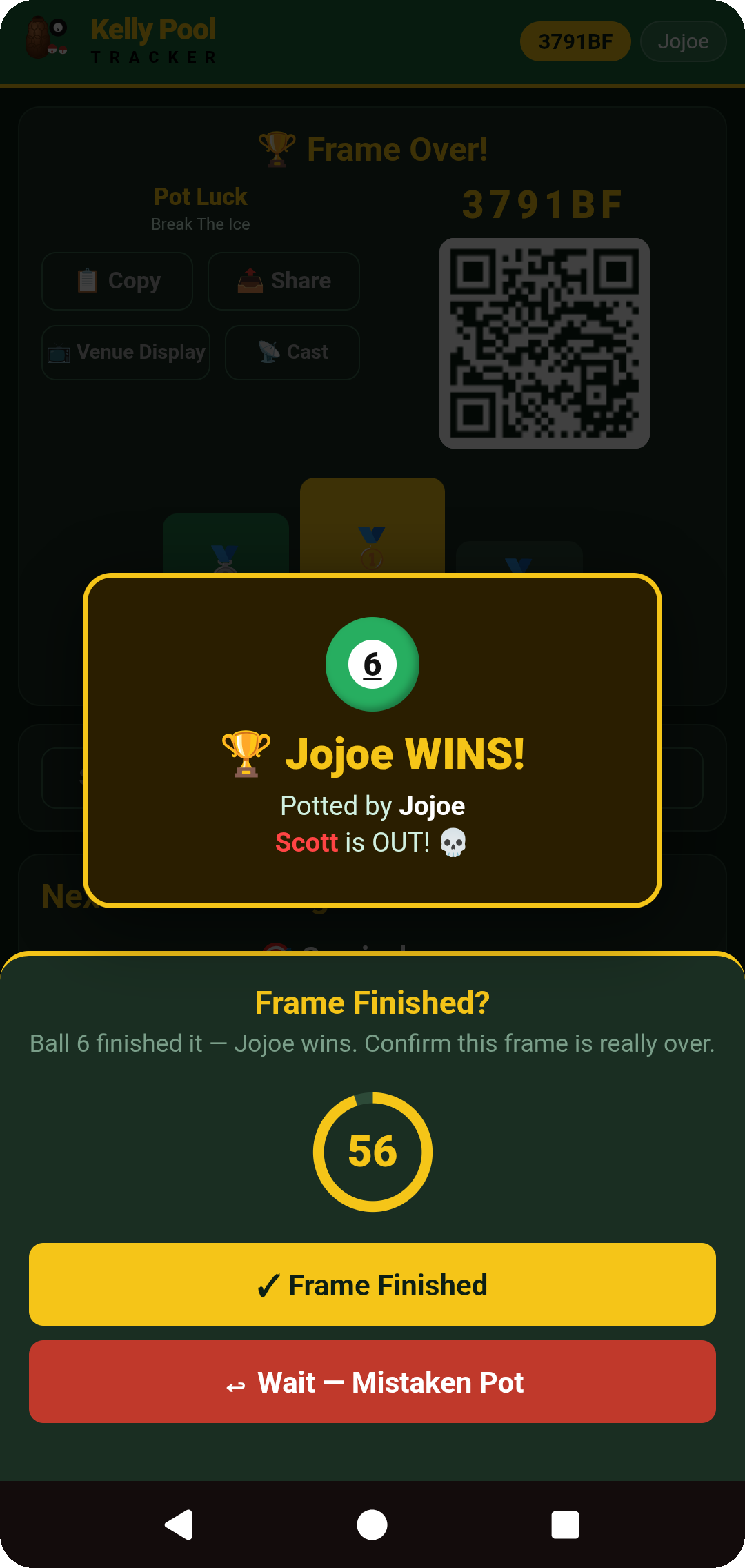
Frame Finished?
60
Kelly PoolTracker
✉️ Feedback Inbox — 0 unread
Kelly Pool Tracker
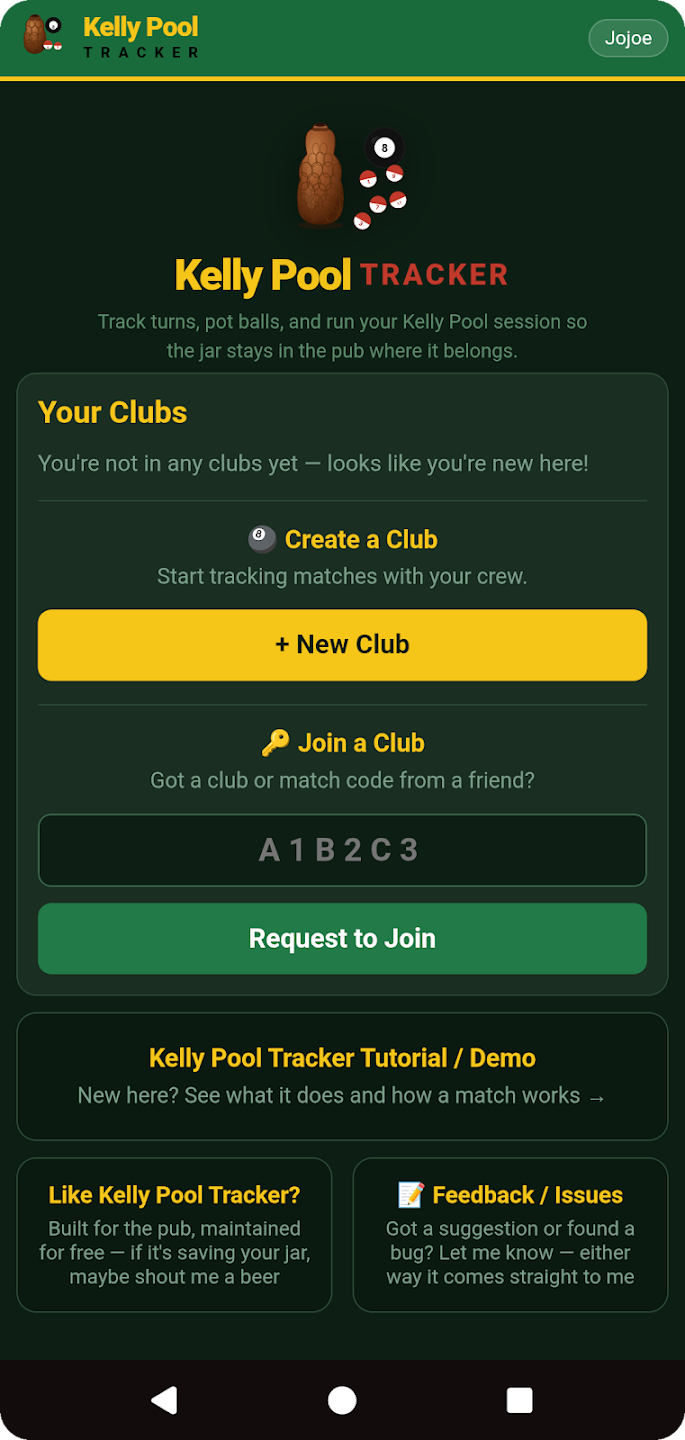
Track turns, pot balls, and run your Kelly Pool session so the jar stays in the pub where it belongs.
🛠️ Site Admin
Your Clubs
Loading…
🎱 Create a Club
Start tracking matches with your crew.
🔑 Join a Club
Got a club or match code from a friend?
Sign In
·
OR
Kelly Pool Tracker Tutorial / Demo
New here? See what it does and how a match works →
Like Kelly Pool Tracker?
Built for the pub, maintained for free — if it's saving your jar, maybe shout me a beer
📝 Feedback / Issues
Got a suggestion or found a bug? Let me know — either way it comes straight to me
Create Account
🎱 You've been invited to a Kelly Pool Tracker club — create your account below and you'll be added automatically.
OR
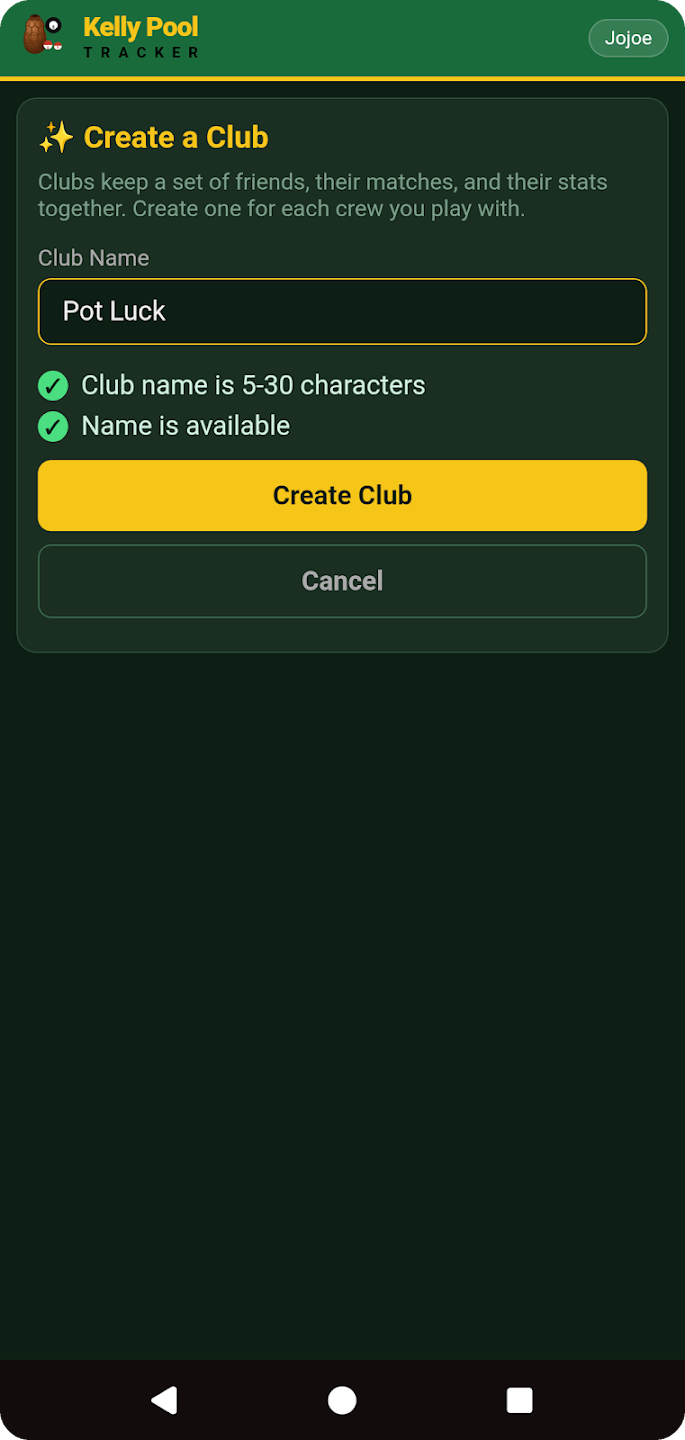
✨ Create a Club
Clubs keep a set of friends, their matches, and their stats together. Create one for each crew you play with.
Club
——————
Club Treasury
—
Your Balance
—
🚪 Match Join Requests 0
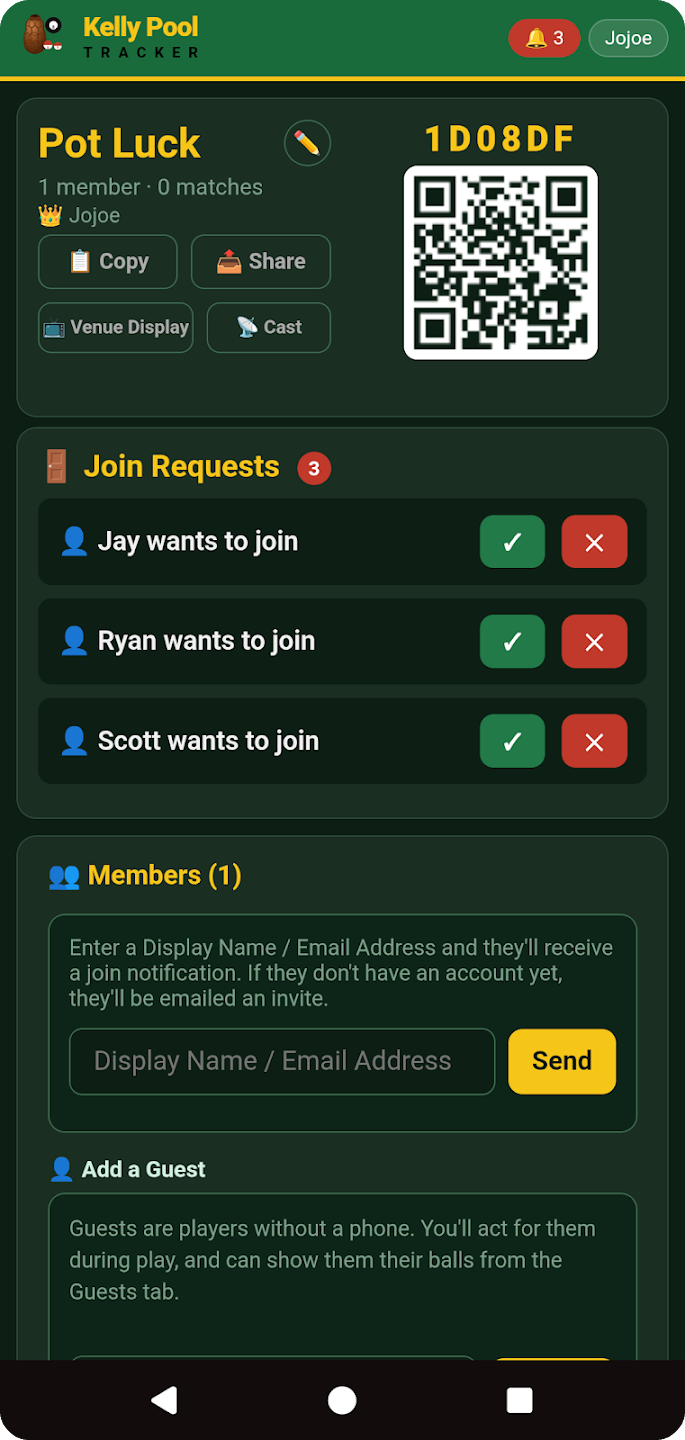
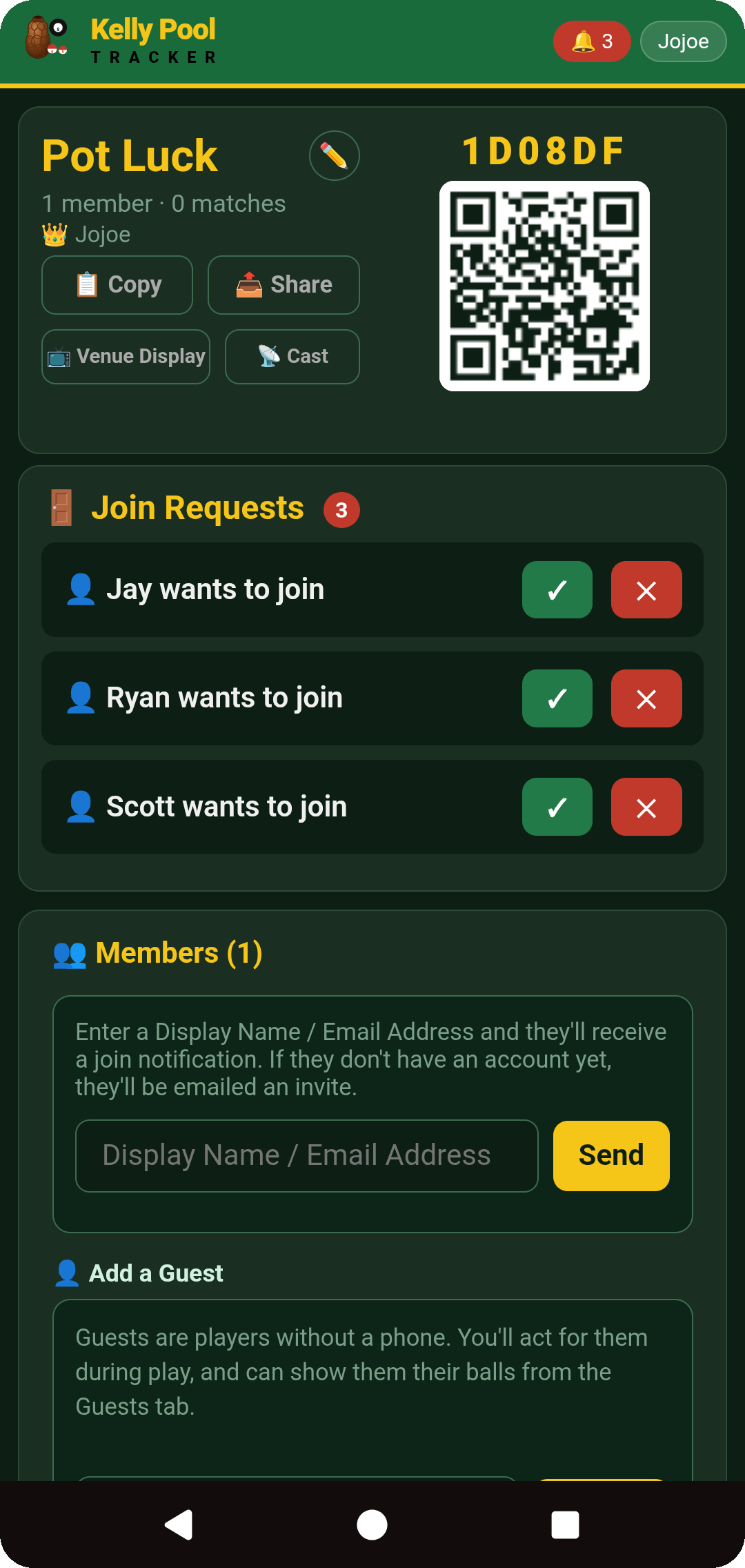
🚪 Join Requests 0
Loading…
👥 Members▼
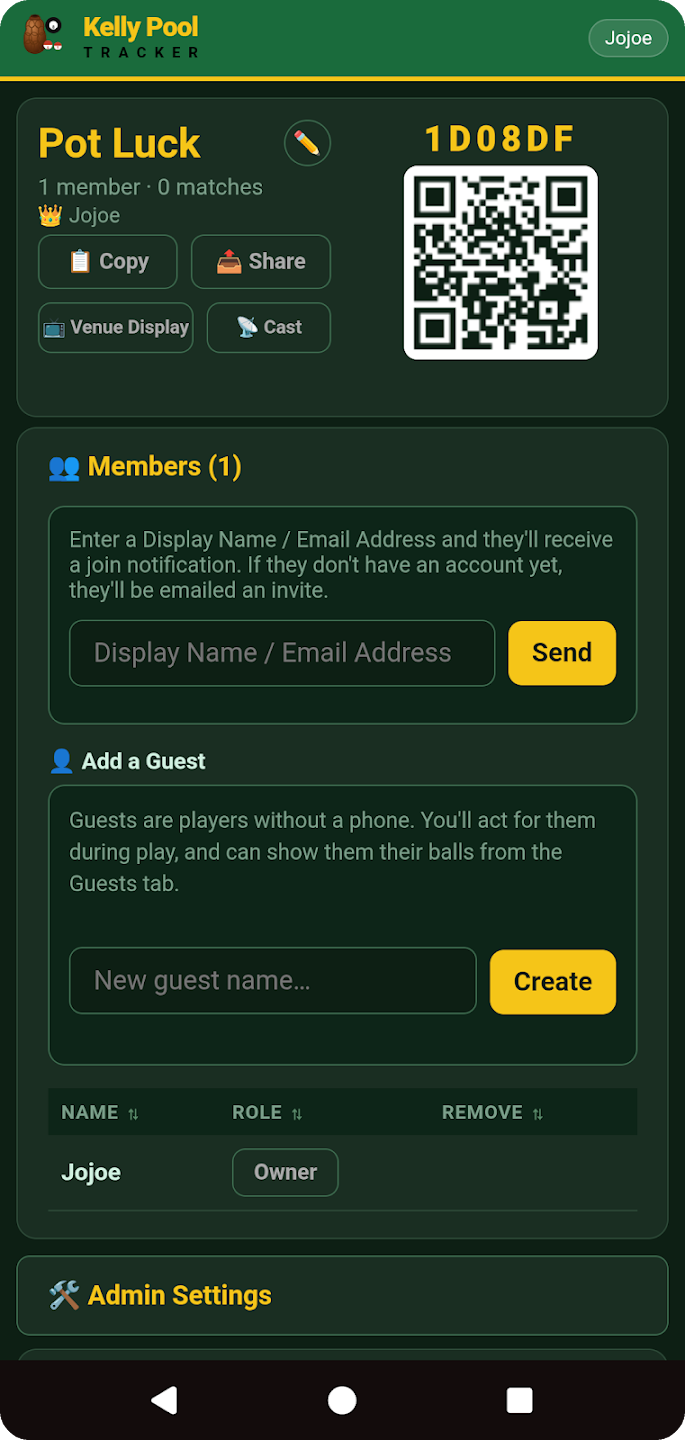
Enter a Display Name / Email Address and they'll receive a join notification. If they don't have an account yet, they'll be emailed an invite.
👤 Add a Guest
Loading…
Pending Invites
📊 All Time Stats▼
Loading stats…
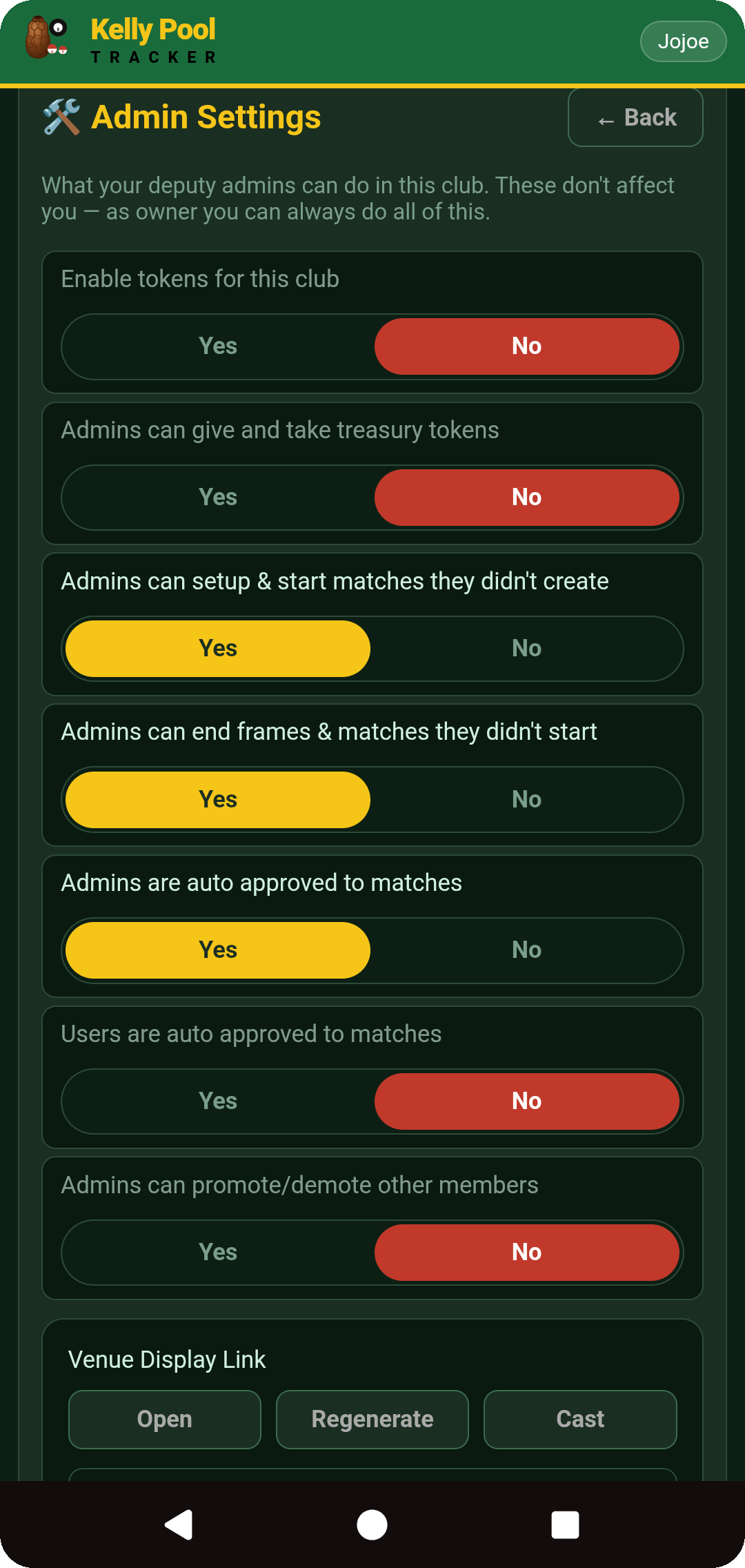
🛠 Admin Settings
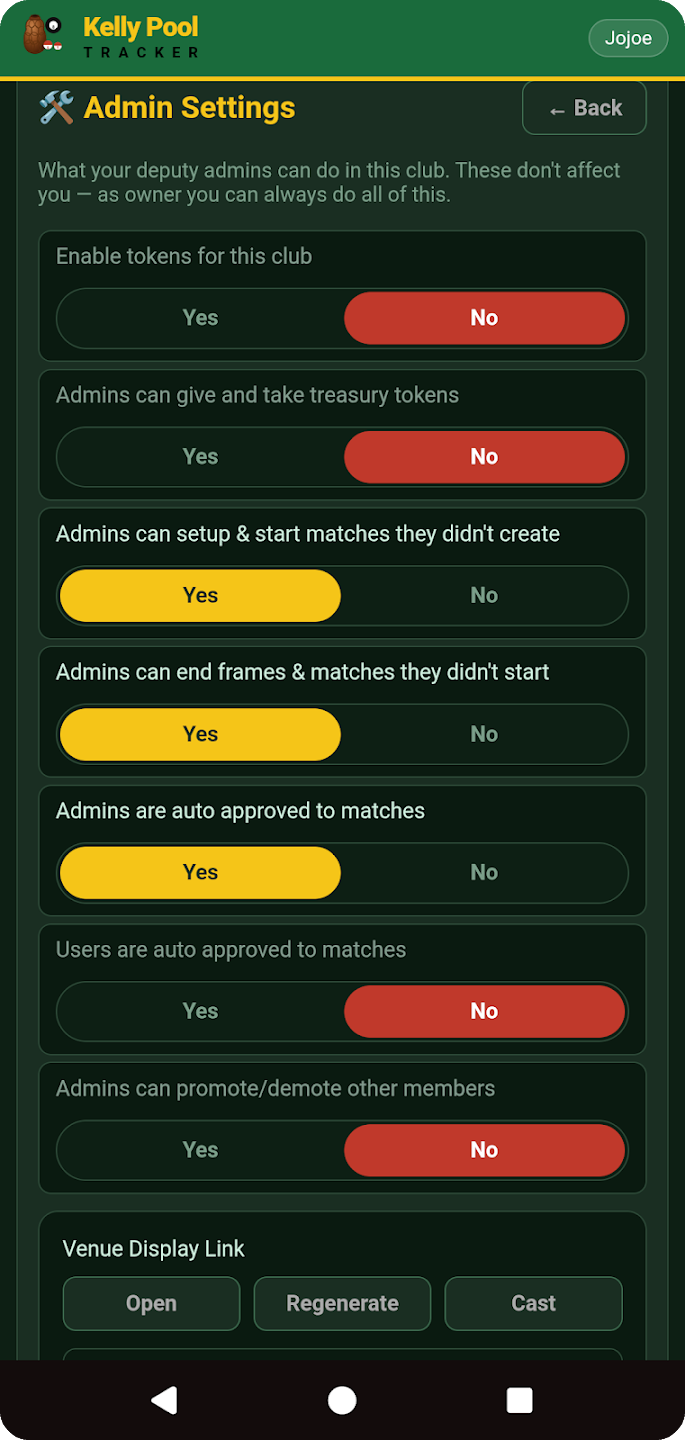
What your deputy admins can do in this club. These don't affect you — as owner you can always do all of this.
Loading…
Venue Display Link
Show video on Venue Display
Video source
Paste the direct HTTP/HTTPS feed from the venue's camera or Blue Iris server. Local feeds suit small, on-site setups; every Venue Display or cast device opens its own feed.
The venue creates and starts the stream in its own YouTube channel. Use a Public or Unlisted viewer link (not a YouTube Studio link) and make sure embedding is allowed. Kelly Pool displays it; the venue remains responsible for the stream, privacy and content.
Vision Service URL
Auto Pot Detection
🪙 Your Token History
Loading…
🏦 Club Treasury
Choose who to give tokens to or take tokens from.
🪙 Club Token History▼
Loading…
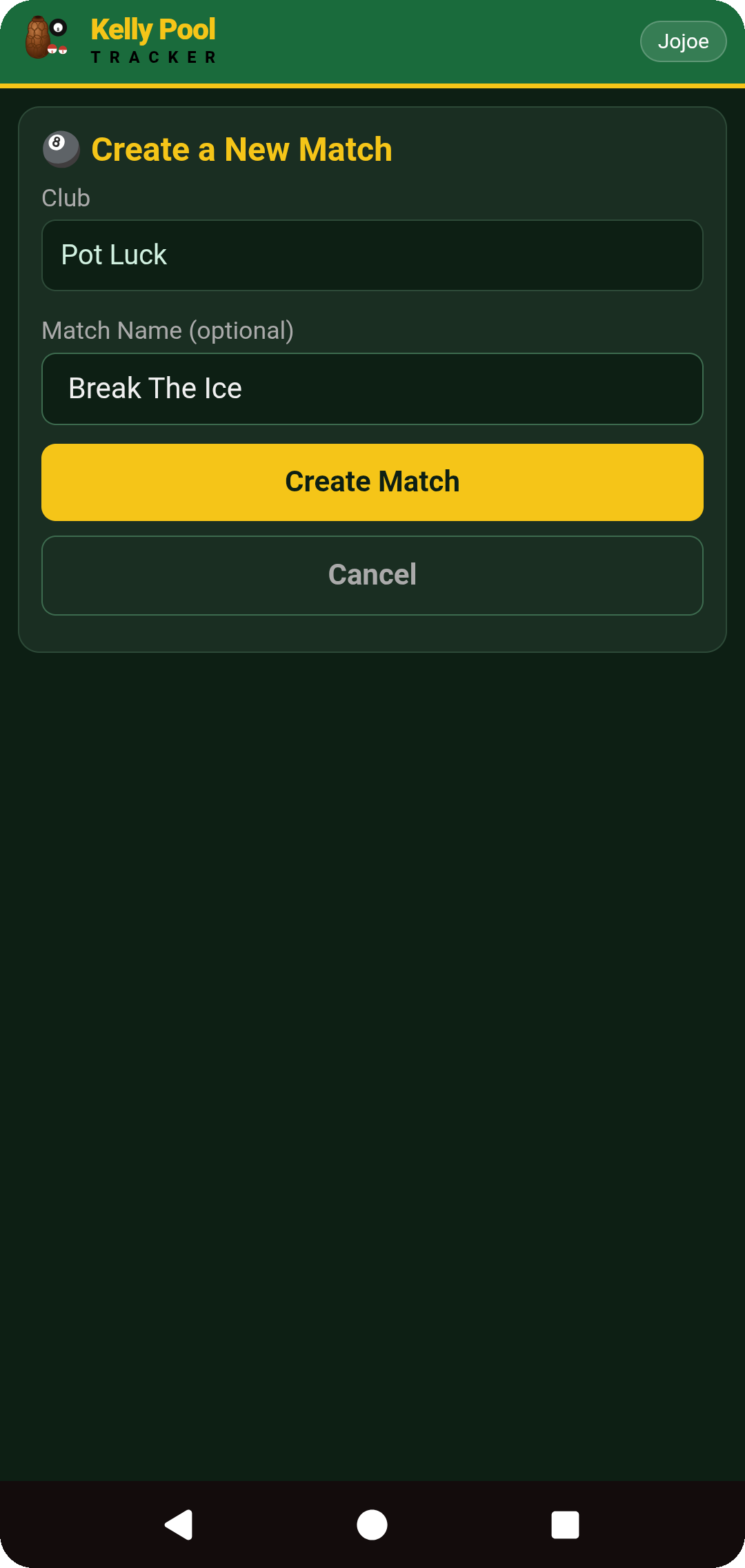
🎱 Create a New Match
Players on this offline device
Choose everyone playing. This phone will be the match controller until the match ends.
Join a Club or Match
You'll join as .
🔔 Join Requests 0
⏳
Waiting for match to start
The admin will start the match soon…
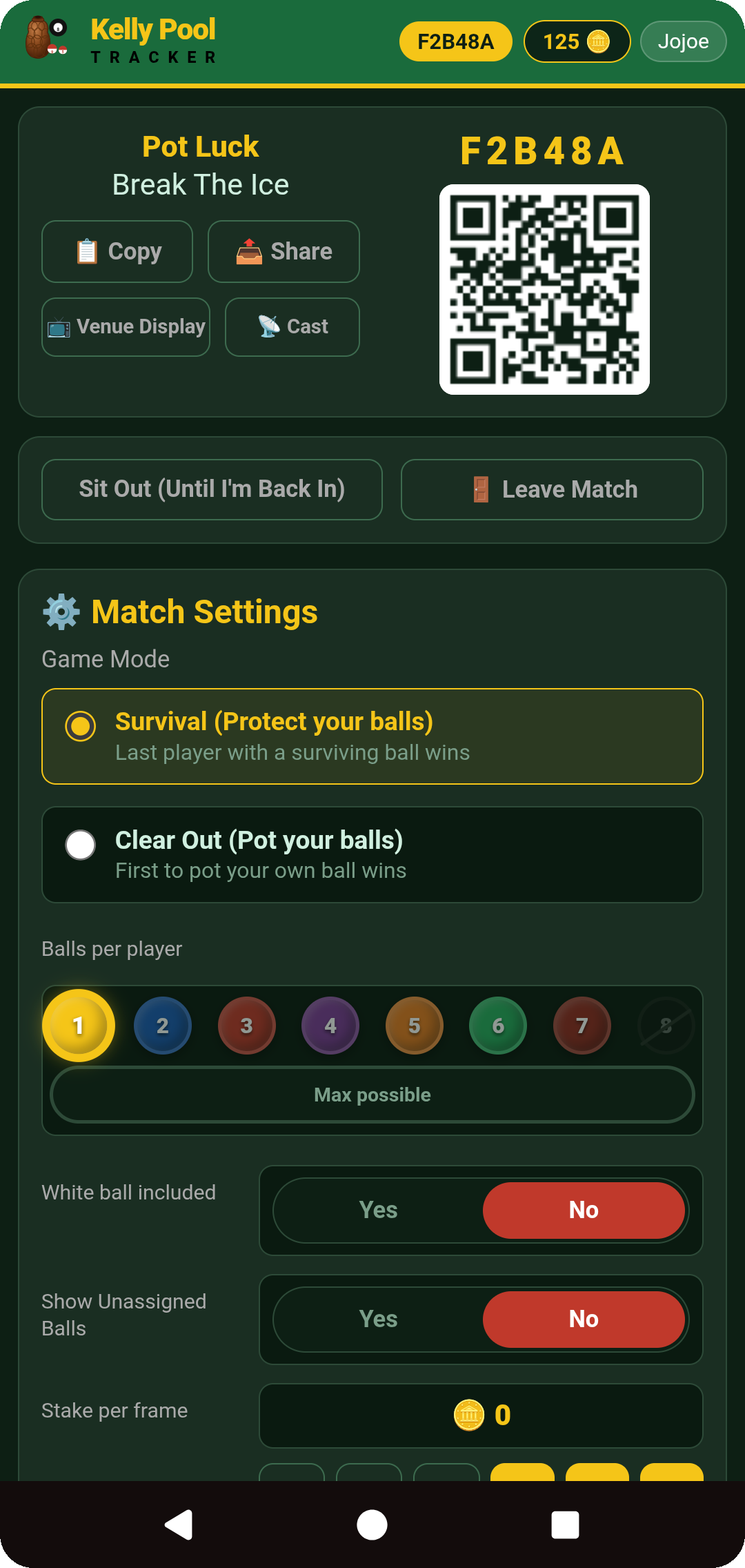
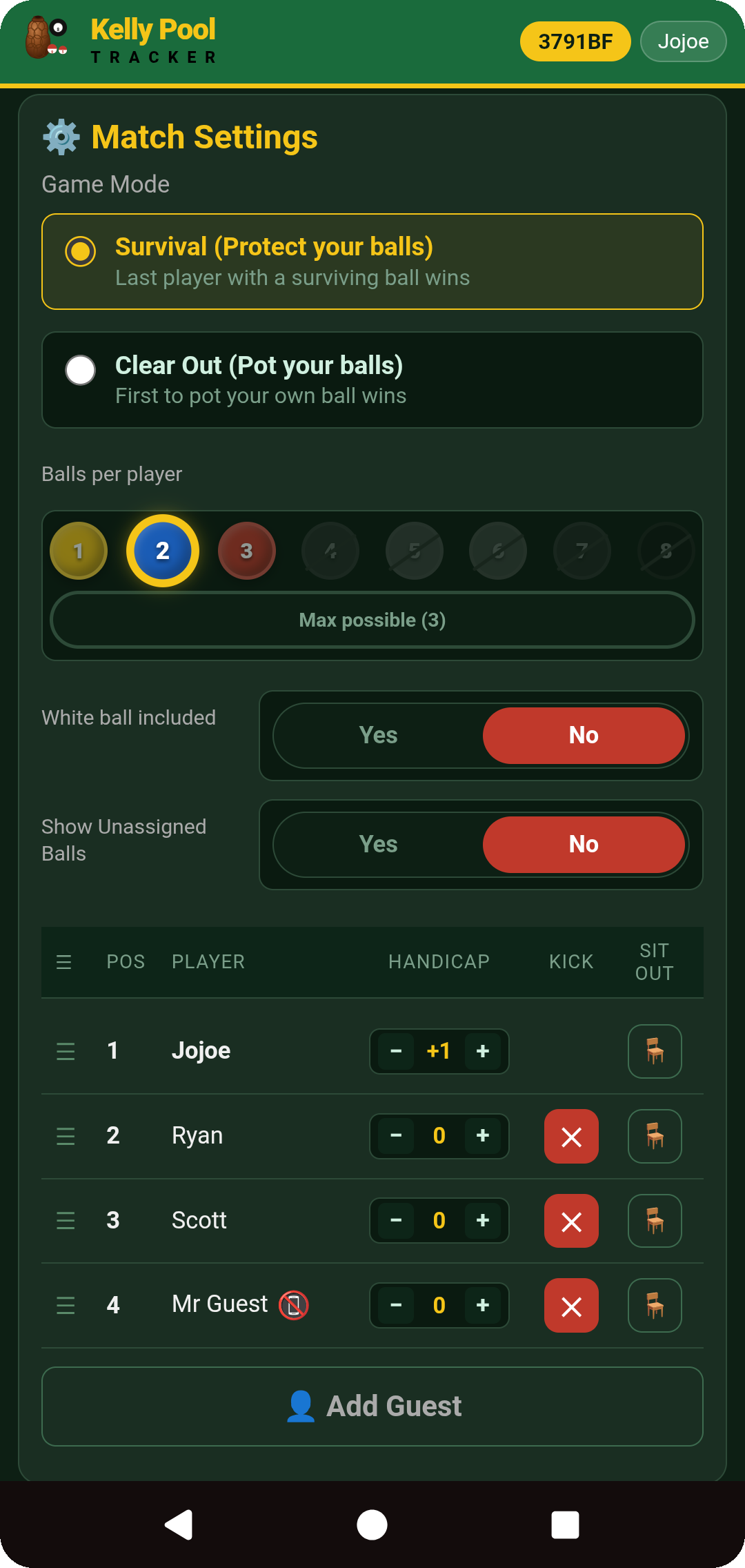
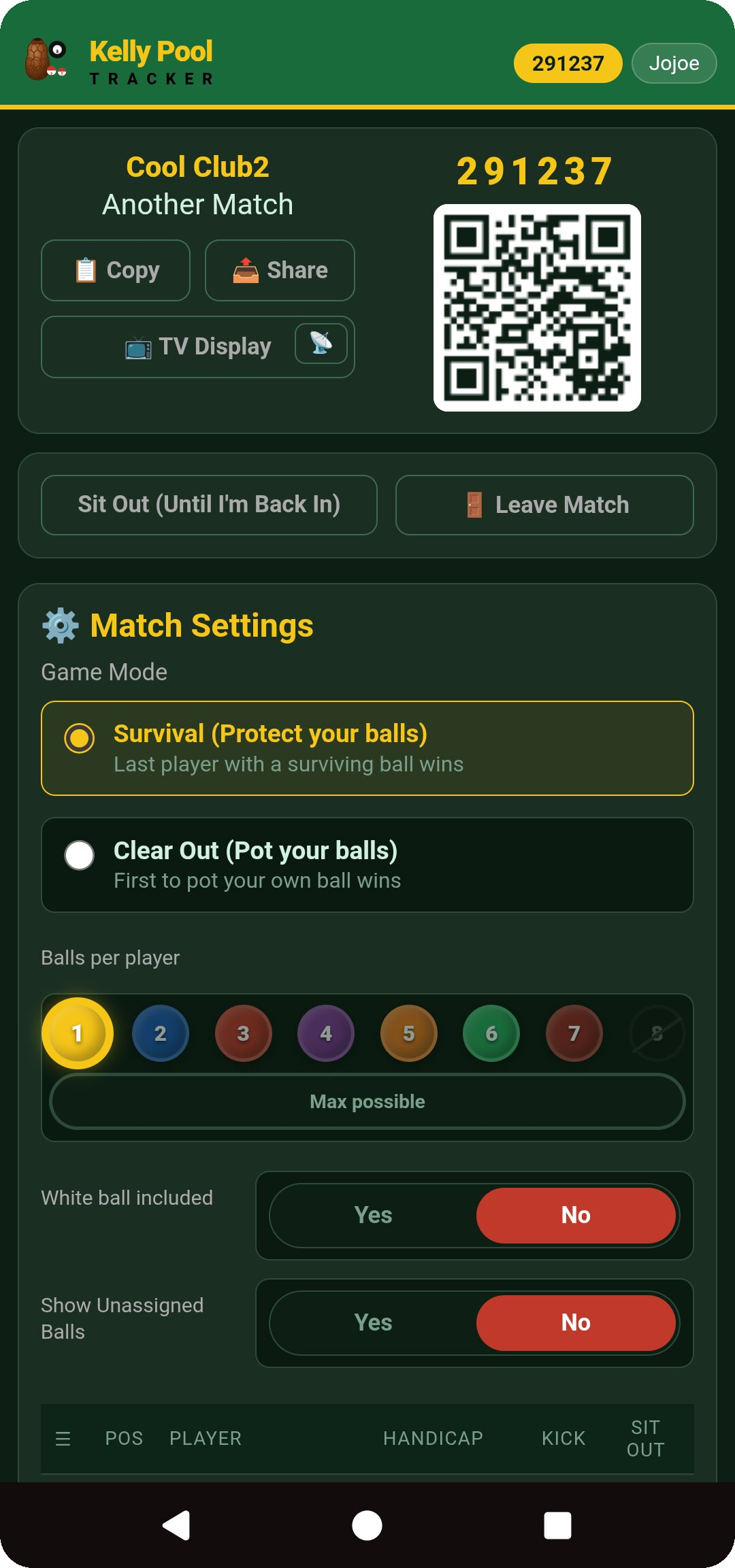
⚙️ Match Settings
🎯 Survival (Protect your balls) — Last Ball Standing
Each player is assigned one or more secret balls. Your goal is to be the last player with at least one assigned ball remaining on the table.
Potting your own ball is allowed.
Losing a ball removes one of your 'lives'.
You're eliminated when all your assigned balls have been potted.
The last player with a surviving ball wins.
🏆 Clear Out (Pot your balls)
Each player is assigned a set of secret balls (the "Balls per player" picker below — same as Survival — sets how many each player starts with, before handicaps). Your goal is to legally pot your OWN LAST remaining ball before anyone else does.
It doesn't matter who pots your other balls along the way — only the LAST one matters: if you pot it yourself, you win outright. If someone else pots it, you're simply eliminated.
You're eliminated the moment all of your balls are gone, UNLESS the very last one was potted by you — that's an outright win instead.
First player to legally pot their own last remaining ball wins.
⚠️ Handicaps work in reverse here: in Survival, extra balls are an advantage (more lives). In Clear Out, extra balls are a disadvantage — you need every single one of them gone before you can even attempt the winning self-pot, which is more opportunities for someone else to knock you out first.
🔒 Game Mode can't be changed once the match has started.
Balls per player
How many balls each player starts the frame with, before handicaps are applied. Handicaps then add or remove balls per player on top of this base number.
White ball included
White ball (#16): An extra ball added to the rack so there's one more potting chance to go around. If included, the first player to pot it is immediately out of the frame — it's a quick way to eliminate someone early rather than something to aim for.
Show Unassigned Balls
Not every ball gets dealt to a player — with fewer players or a lower balls-per-player setting, several balls on the table belong to nobody. Turning this on reveals exactly which ball numbers those are to everyone, so players can pot them risk-free without needing to guess. It never reveals who owns any of the assigned balls.
Stake per frame
🪙 0
How token staking works:
Each player who's in for tokens stakes that many tokens into the pot for that frame — taken from their balance right when the frame starts. Staking is optional — anyone can opt out of any frame and just play for fun.
Example: 4 players × 10 tokens = 40 token pot, but if one player opts out, it's just 3 × 10 = 30.
Who wins the pot: In Survival, the pot goes to whoever finished best among the players who staked — not necessarily the frame's outright winner. If the actual frame winner didn't stake, the pot still goes to the best-placed staker rather than being refunded. In Clear Out, the pot currently only pays out when the frame's winner staked; if they didn't, staked players get their own tokens back.
Changing it frame to frame: The stake amount can be changed before each new frame, and players can opt in or out every time.
No debts: Tokens are taken at the start of the frame and paid out at the end — nobody ever owes anybody tokens. If a frame gets cancelled, every staked player gets their tokens back automatically.
Tokens are handed out and cashed back in by your club's owner/admins — see the Token Ledger on the club page.
☰PosPlayerHandicapKickSit Out
Position
Player
Handicap
Status
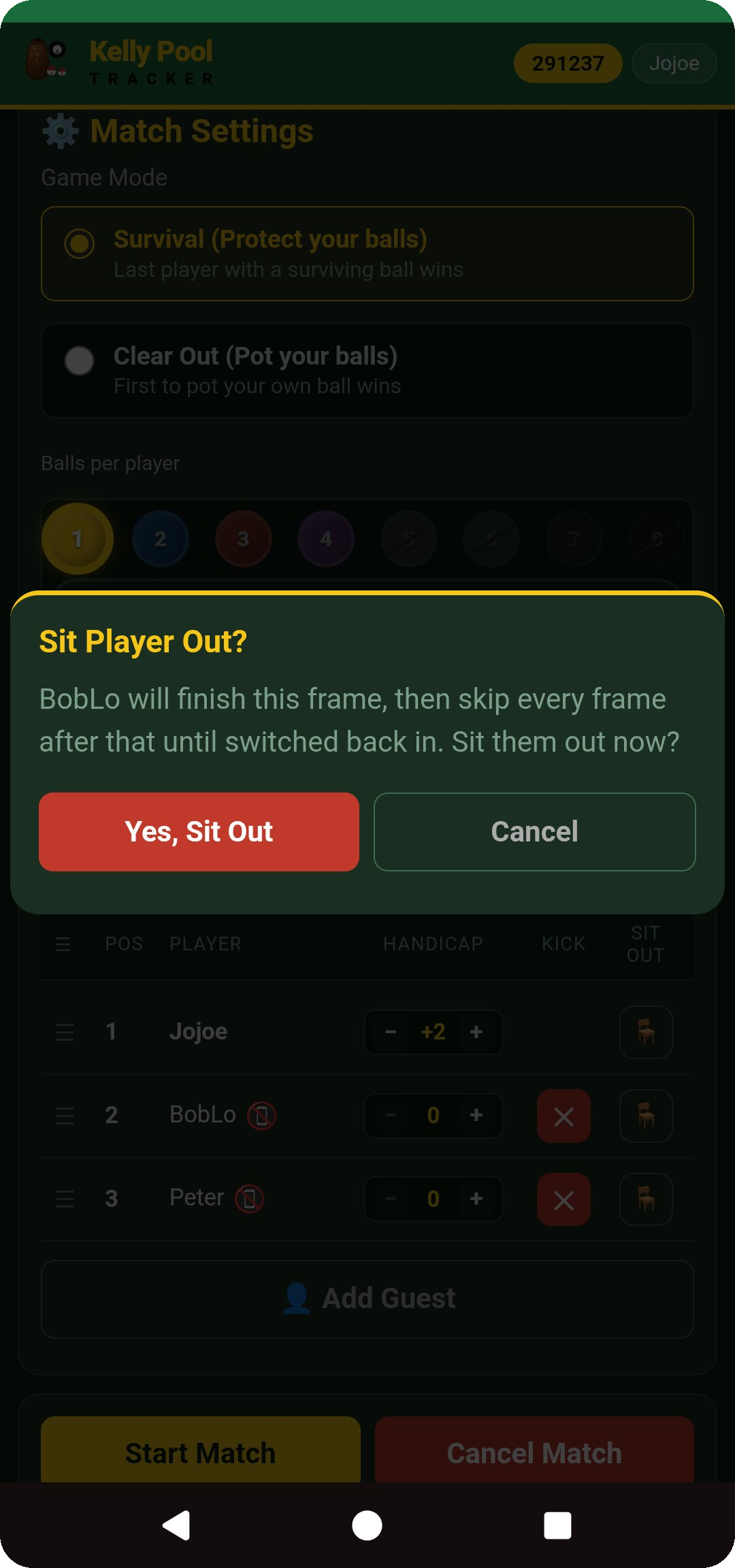
🪑
SITTING OUT THIS FRAME
You opted out before this frame started — switch back in any time from the Live View tab
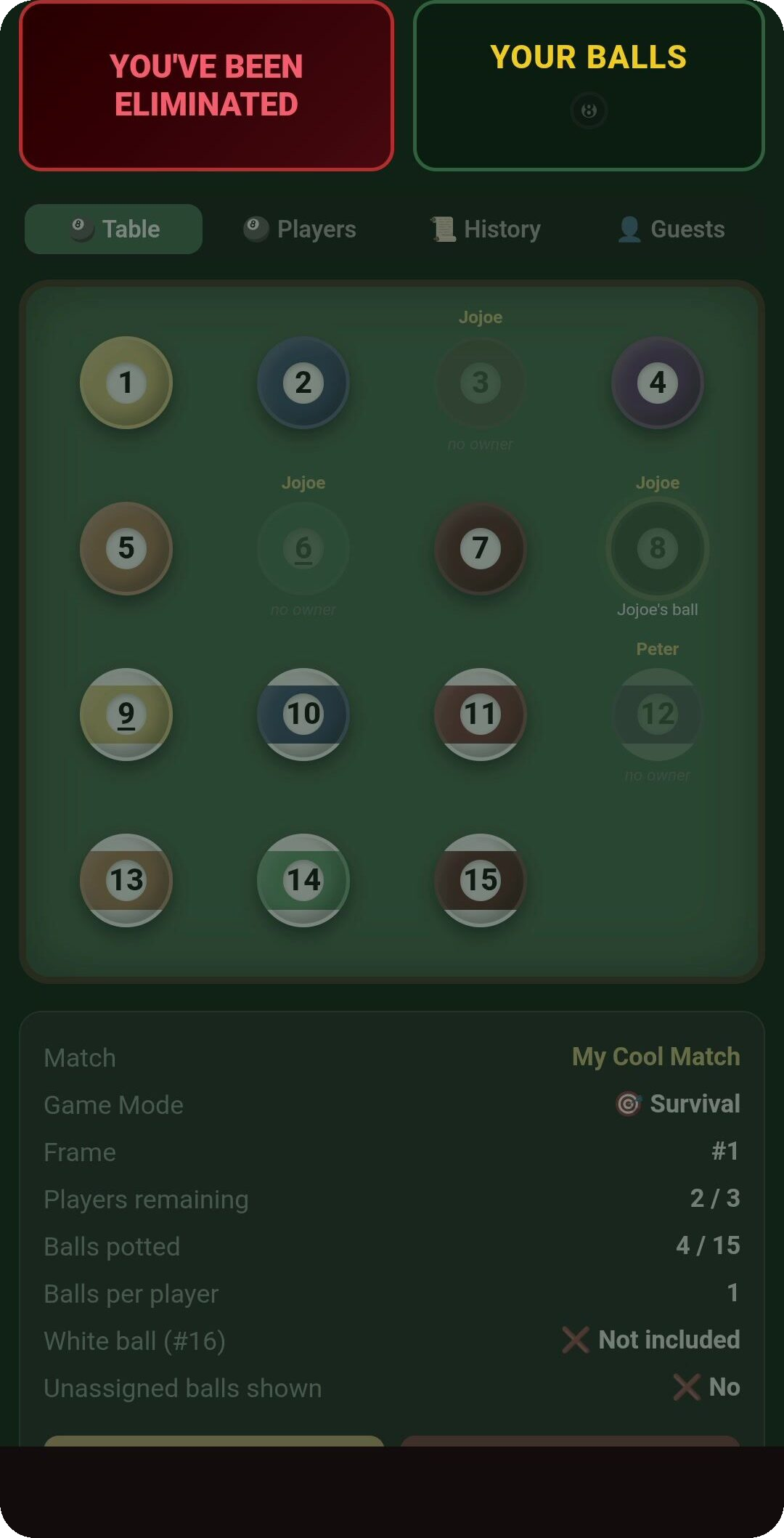
YOU'VE BEEN ELIMINATED
🔒 CLICK TO SHOW BALLS
🪑 Sit Out (Until I'm Back In)
🎉
Match Complete!
🏆 Frame Over!
Waiting for admin to start next frame…
Next Frame Settings
🔔 Waiting to join 0
Game Mode
Balls per player
How many balls each player starts the frame with, before handicaps are applied. Handicaps then add or remove balls per player on top of this base number.
White ball included
White ball (#16): An extra ball added to the rack so there's one more potting chance to go around. If included, the first player to pot it is immediately out of the frame — it's a quick way to eliminate someone early rather than something to aim for.
Show Unassigned Balls
Not every ball gets dealt to a player — with fewer players or a lower balls-per-player setting, several balls on the table belong to nobody. Turning this on reveals exactly which ball numbers those are to everyone, so players can pot them risk-free without needing to guess. It never reveals who owns any of the assigned balls.
Stake per frame
🪙 0
How token staking works:
Each player who's in for tokens stakes that many tokens into the pot for that frame — taken from their balance right when the frame starts. Staking is optional.
Example: 4 players × 10 tokens = 40 token pot, but if one player opts out, it's just 3 × 10 = 30.
Who wins the pot: In Survival, the pot goes to whoever finished best among the players who staked — not necessarily the frame's outright winner. In Clear Out, the pot currently only pays out when the frame's winner staked; if they didn't, staked players get their own tokens back.
Changing it frame to frame: The stake amount can be changed before each new frame, and players can opt in or out every time.
No debts: Tokens are taken at the start and paid out at the end — nobody ever owes anybody tokens. A cancelled frame refunds every staked player automatically.
☰PosPlayerHandicapKickSit Out
Next Frame Settings
ℹ️ These settings are set by the admin and may still change before the next frame starts.
Loading current settings…
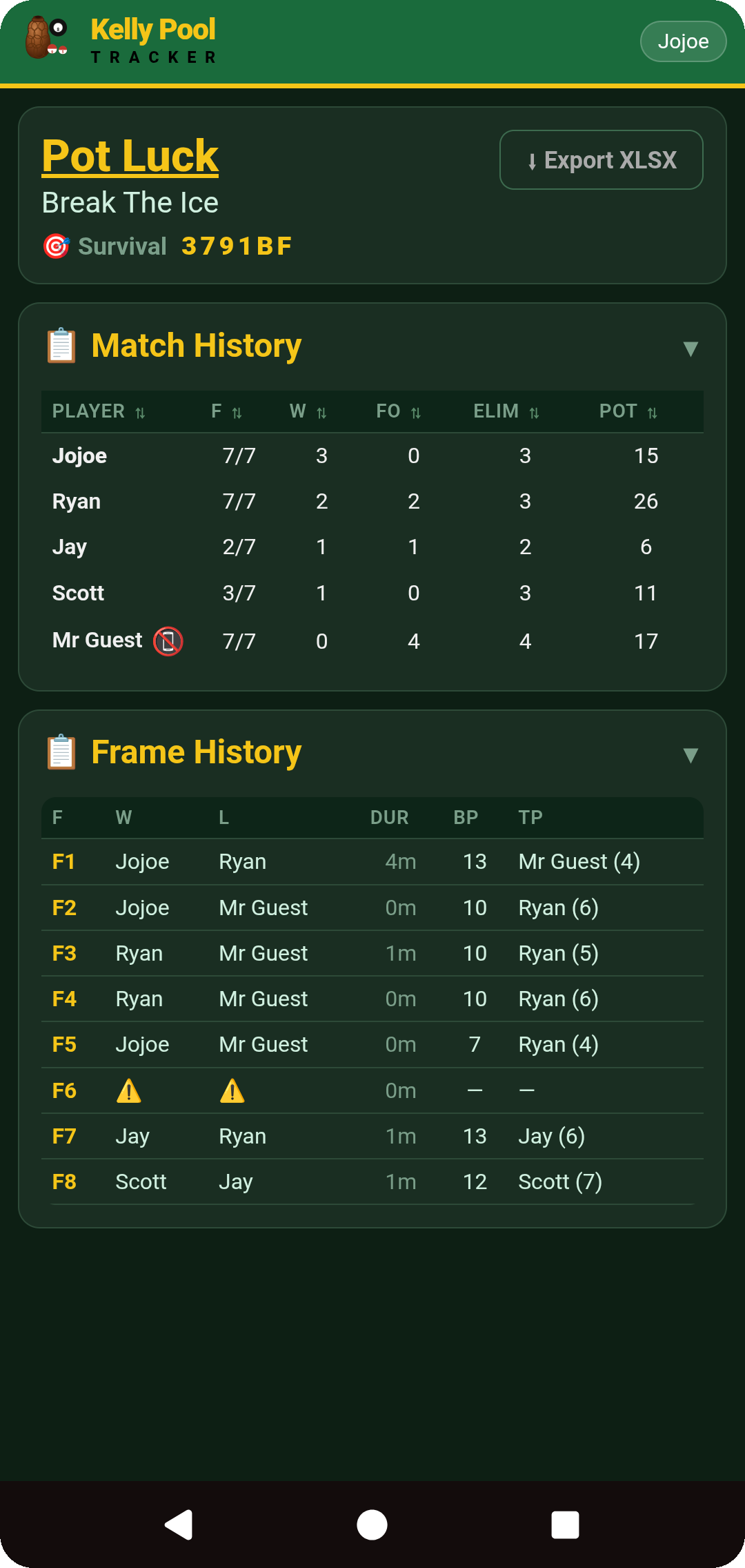
📋 Match History
▼
📋 Frame History
▼
🪙 Token History ▶
🎱 About
Kelly Pool Tracker is a simple way to organise and keep track of a Kelly Pool session.
Whether it is an occasional game with mates or a regular club night, it replaces the bottle and numbered pills, scraps of paper when the numbers inevitably go missing, and handwritten score sheets — assuming anyone was keeping them in the first place — with a live system that players can follow from their phones.
There is no need to remember whose turn is next, whether someone is still in the frame or how many balls each player has remaining. Kelly Pool Tracker privately assigns the balls, lets the administrator customise or randomise the playing order, and keeps the progress of the frame visible as it is played.
Players with an account can privately check their own balls, follow the live table, see the playing order and review match results and statistics from their phones. Someone without a phone, or who does not want to create an account, can still play as a guest and be managed by the match administrator.
As balls are potted, the table, player standings and match history update automatically. This keeps everyone informed and provides a clear record of the session without relying on one person to remember or write down everything that happened.
Main Features
Kelly Pool Tracker can be used to:
Create separate clubs for the different groups you play with.
Invite members using a link, QR code or six-character code.
Add guests who do not have an account or phone available.
Create matches containing multiple frames.
Privately assign one or more balls to each player.
Arrange or randomise the playing order.
Apply individual player handicaps.
Record each potted ball and who potted it.
Correct a pot if the wrong ball was entered.
Track eliminations, finishing positions and frame results.
Sit players out and bring them back for later frames.
Review club, match, frame and player statistics.
Show the live match on a television or computer using the Venue Display.
Export match and club records.
Optionally use club tokens to record friendly in-app stakes.
Ready to Start?
See how to create or join a club, start a match and put it on the Venue Display.
Detailed instructions for clubs, matches, live frames, guests, statistics, tokens and more.
Jump to a Topic
Setting Up an Account
Creating and Managing a Club
Joining a Club or Match
Creating and Setting Up a Match
Guests and Players Without Phones
Understanding the Live Match
Recording and Correcting Pots
Finishing a Frame and Starting the Next
Sitting Out, Rejoining and Leaving
Ending a Match, History and Exports
Account and Personal Settings
Venue Display and Casting
Tokens
Club and Player Statistics
Quick Start
Kelly Pool Tracker can be used as either a player or a club administrator. Players can follow the match from their own phones, while the administrator creates the match, manages the settings and records what happens. Players without an account or phone can also be added as guests.
1. Create Your Account
Create a free account using your email address and password, or sign in with Google. Choose a display name — this is the name other players will see in clubs, matches and statistics.
You can also adjust personal settings such as theme, date and time format, and whether you click or hold to reveal your balls (and, for click-to-show, how long they stay visible).
2. Create or Join a Club
A club keeps one group's members, matches and statistics together. You can belong to more than one club.
To create your own group, select New Club and give it a name. To join an existing club, use one of the following:
Open an invitation link.
Scan the club's QR code.
Enter its six-character join code.
Accept an invitation sent to your account.
Register using the email address to which an invitation was sent.
Depending on the club's settings, an administrator may need to approve the request.
3. Join a Match
When one of your clubs has a live match, it appears near the top of your home screen. Select Join to enter the match lobby — you'll see the player list and current match settings while the administrator prepares the frame. A player can also join using the match's own link, QR code or six-character code.
Don't have a phone available? The administrator can add you as a guest instead.
4. Create a Match as an Administrator
From the club page, select New Match in This Club. You can optionally enter a match name, then create the match and prepare the first frame.
In the lobby, the administrator can:
Add or approve players, and add guests.
Arrange the playing order manually, or randomise it.
Choose the game mode and set the number of balls assigned to each player.
Apply individual handicaps.
Include or exclude the white ball, and show or hide unassigned balls.
Sit players out or remove players from the match.
Set an optional token stake when tokens are enabled.
Once the players and settings are ready, start the match.
5. Reveal Your Balls
When the frame starts, players with an account receive their privately assigned balls on their own screens. Depending on their personal settings, players can either press and hold to show their balls (release to hide), or tap to show them for a selected number of seconds.
Guests view their balls privately on the administrator's device — a short countdown allows the phone to be passed to the guest before their balls appear.
6. Follow and Record the Frame
The live match includes separate views for the table, players, history and guests. The table shows which balls remain and which have been potted — assigned balls stay private while they are still on the table.
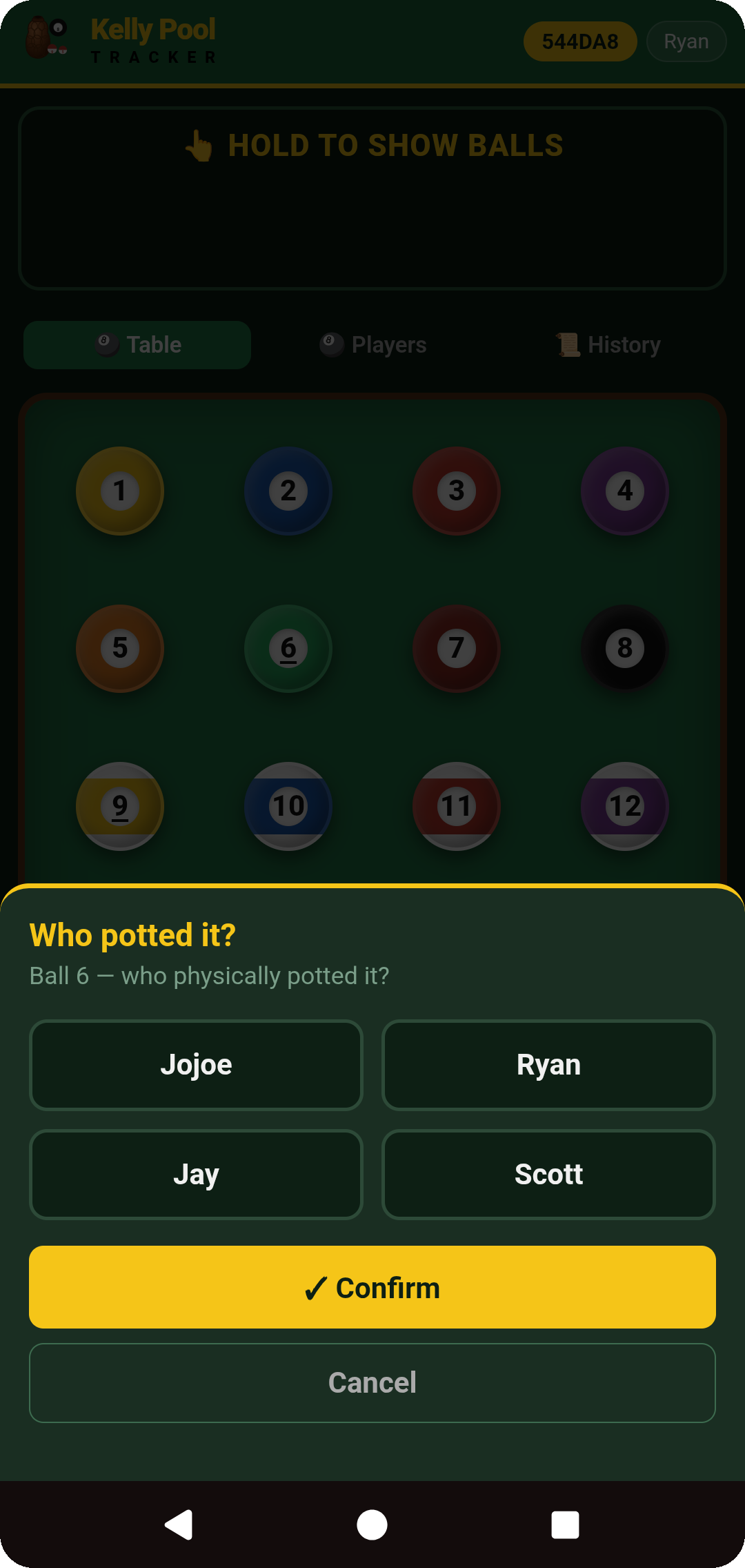
When a ball is potted: tap the ball, select the player who potted it, then confirm the entry. The table, player standings and history then update automatically.
The person who potted the ball is not necessarily the person who owned it — the app records both pieces of information.
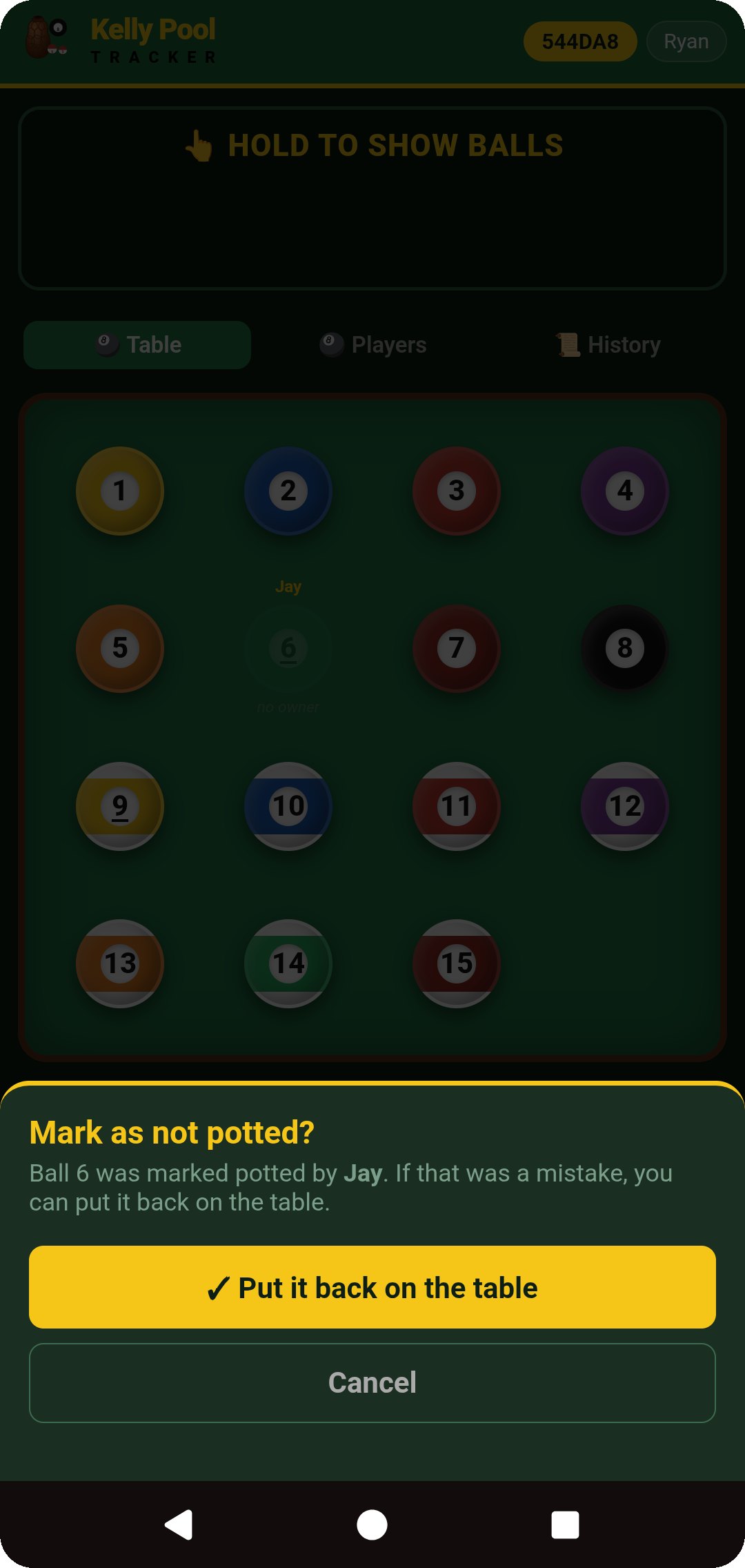
If the wrong ball was entered, tap the potted ball and return it to the table — the reversal is also recorded in the frame history.
7. Start the Next Frame
When the frame ends, the result remains available briefly so an incorrect final pot can be reversed before the result is confirmed.
Between frames, the administrator can change eligible frame settings, reorder or randomise the playing order, sit players out or bring them back in, add guests, begin the next frame, or end the overall match.
When the match is ended, its results and statistics are saved in the club's history.
8. Put the Match on the Venue Display
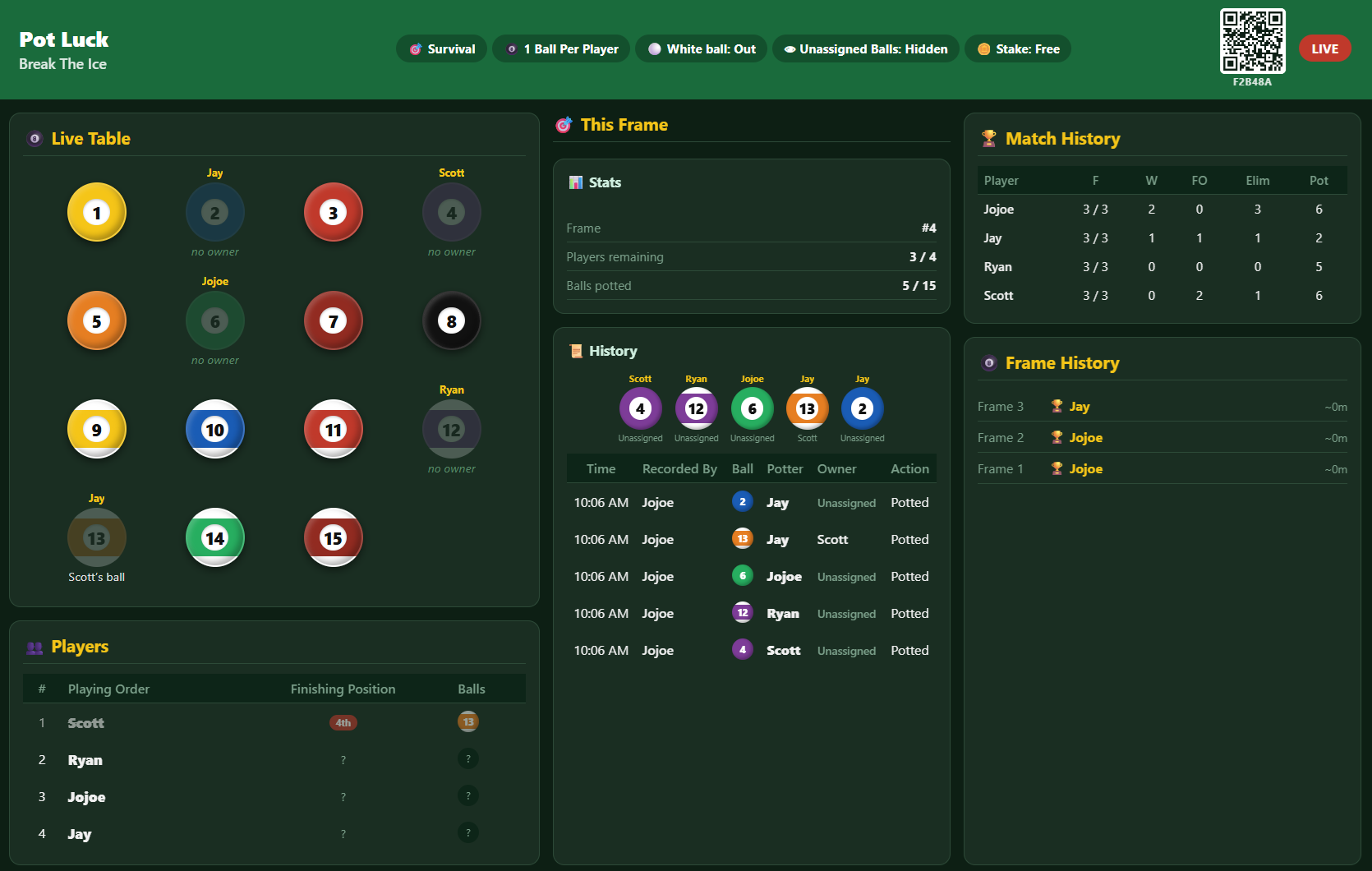
Every club has a Venue Display designed for a television, computer monitor or other large screen. During a live match, it can show the live table, potted balls, playing order and player standings, players remaining, frame and match progress, and the club or match join code with a QR code for players joining at the venue. Between matches, it can show the club's all-time leaderboard.
You can open it from the club or live match screen and cast it to a Chromecast or Google TV, or open the club's dedicated Venue Display link directly in a browser on a PC, television or other connected device.
The Venue Display does not require a player to sign in. Once opened, it updates independently, so the administrator does not need to keep casting or leave the display open on their own phone.
Create the match, open the Venue Display on the nearest screen, and players can easily check who is next, who is still in and how the frame is progressing.
Need more detail? The Full User Guide contains detailed instructions and screenshots covering every part of the app.
Kelly Pool Tracker User Guide
This guide explains how to set up a club, run a match and use the rest of Kelly Pool Tracker's features.
For a shorter introduction covering only the basic steps, open the Quick Start guide. The sections below provide more detailed instructions, screenshots and explanations for administrators and players.
Contents
1. Setting Up an Account
2. Creating and Managing a Club
3. Joining a Club or Match
4. Creating and Setting Up a Match
5. Guests and Players Without Phones
6. Understanding the Live Match
7. Recording and Correcting Pots
8. Finishing a Frame and Starting the Next
9. Sitting Out, Rejoining and Leaving
10. Ending a Match, History and Exports
11. Account and Personal Settings
12. Venue Display and Casting
13. Tokens
14. Club and Player Statistics
Tap any screenshot to view it full screen.
1. Setting Up an Account
Players and administrators use the same type of account. Your display name is shown to other members, while your email address remains part of your sign-in details.
Registering or signing in
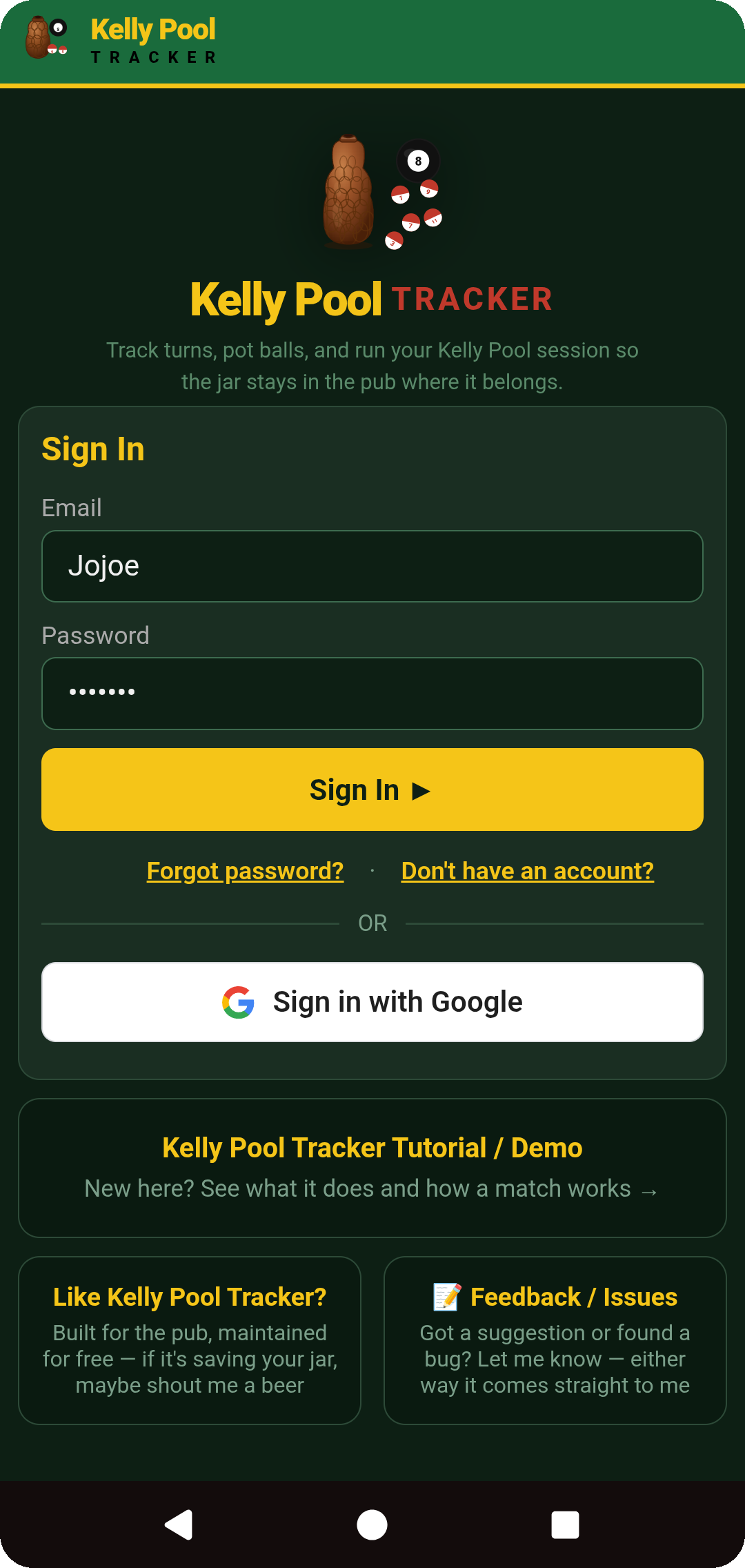
From the home screen, register with an email address and password, or use Sign in with Google. Registering also sets your display name — the name shown to other members in clubs, matches and statistics. There's also a Tutorial / Demo link on this screen if you'd rather see a match in action first.
Your first home screen
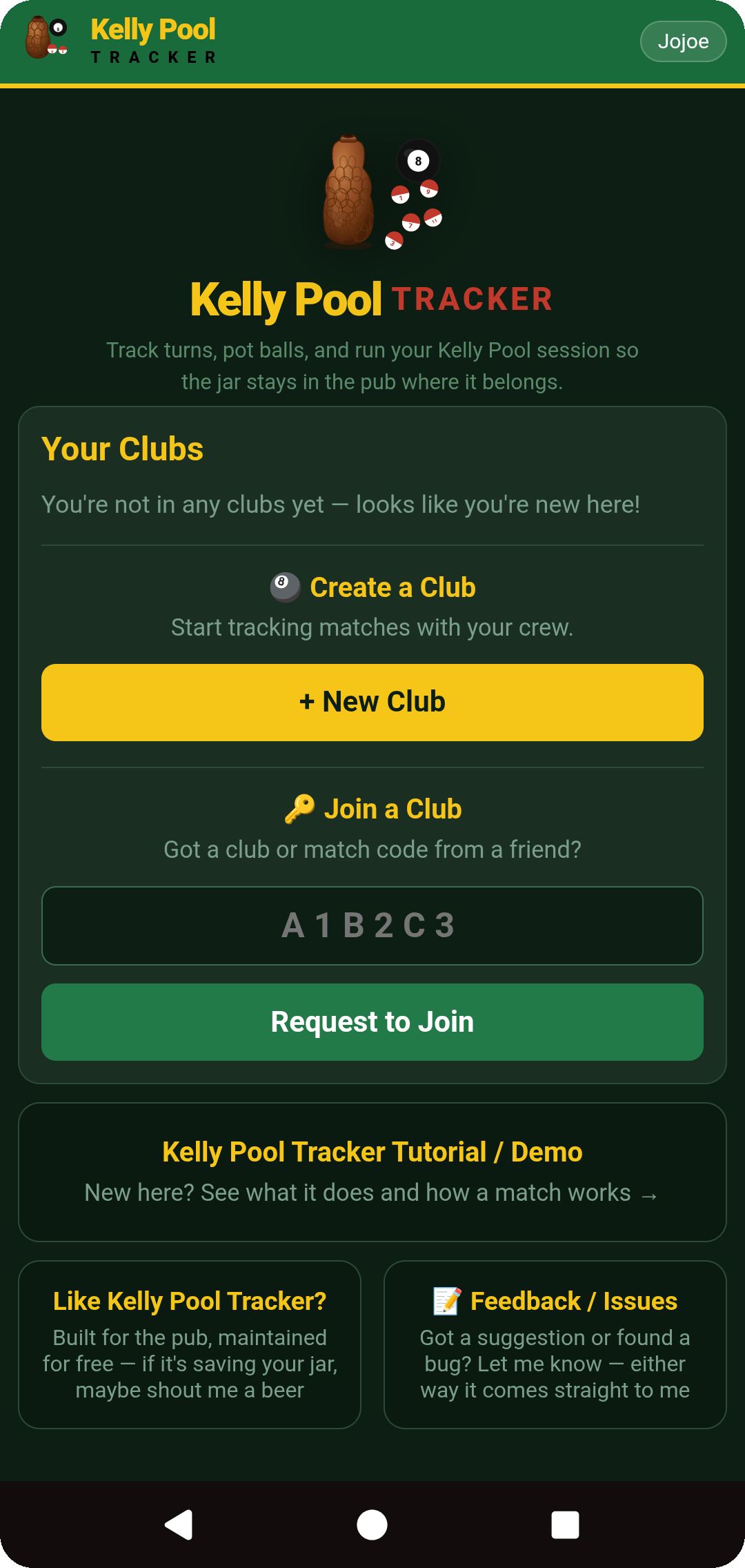
A fresh account isn't in any clubs yet, so the home screen offers the two ways in: + New Club to start your own, or Join a Club using a six-character club or match code someone's given you. Once you belong to clubs, this screen becomes your dashboard of them, with any live matches surfaced at the top.
Personal settings — theme, date and time format, and how your balls are revealed — are covered in section 11, Account and Personal Settings.
2. Creating and Managing a Club
A club represents one playing group — its members, matches and statistics are kept together. One account can belong to, or administer, multiple clubs.
Create a Club
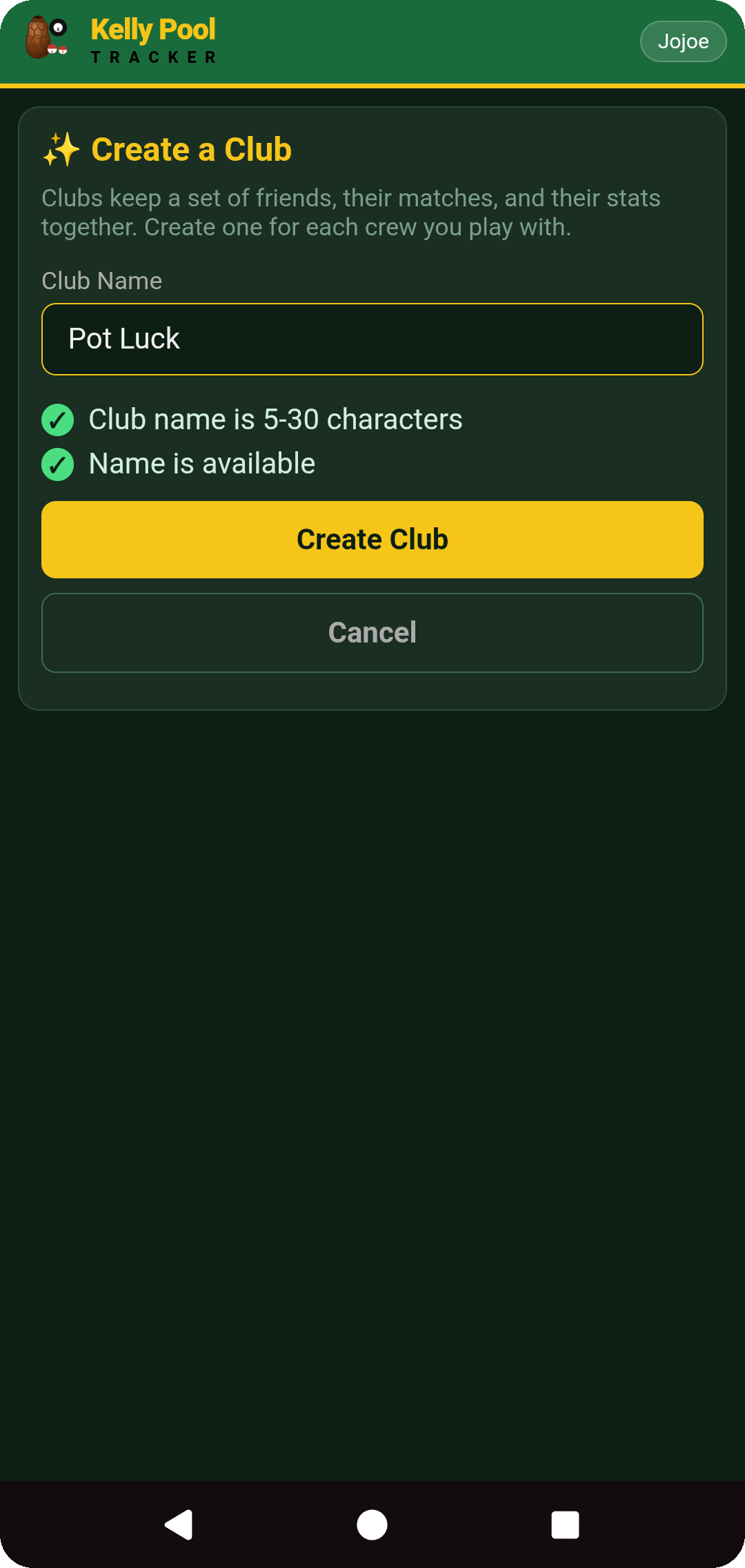
Give the club a name — it's checked live for length and availability as you type. Create a separate club per group you play with.
The Club Screen
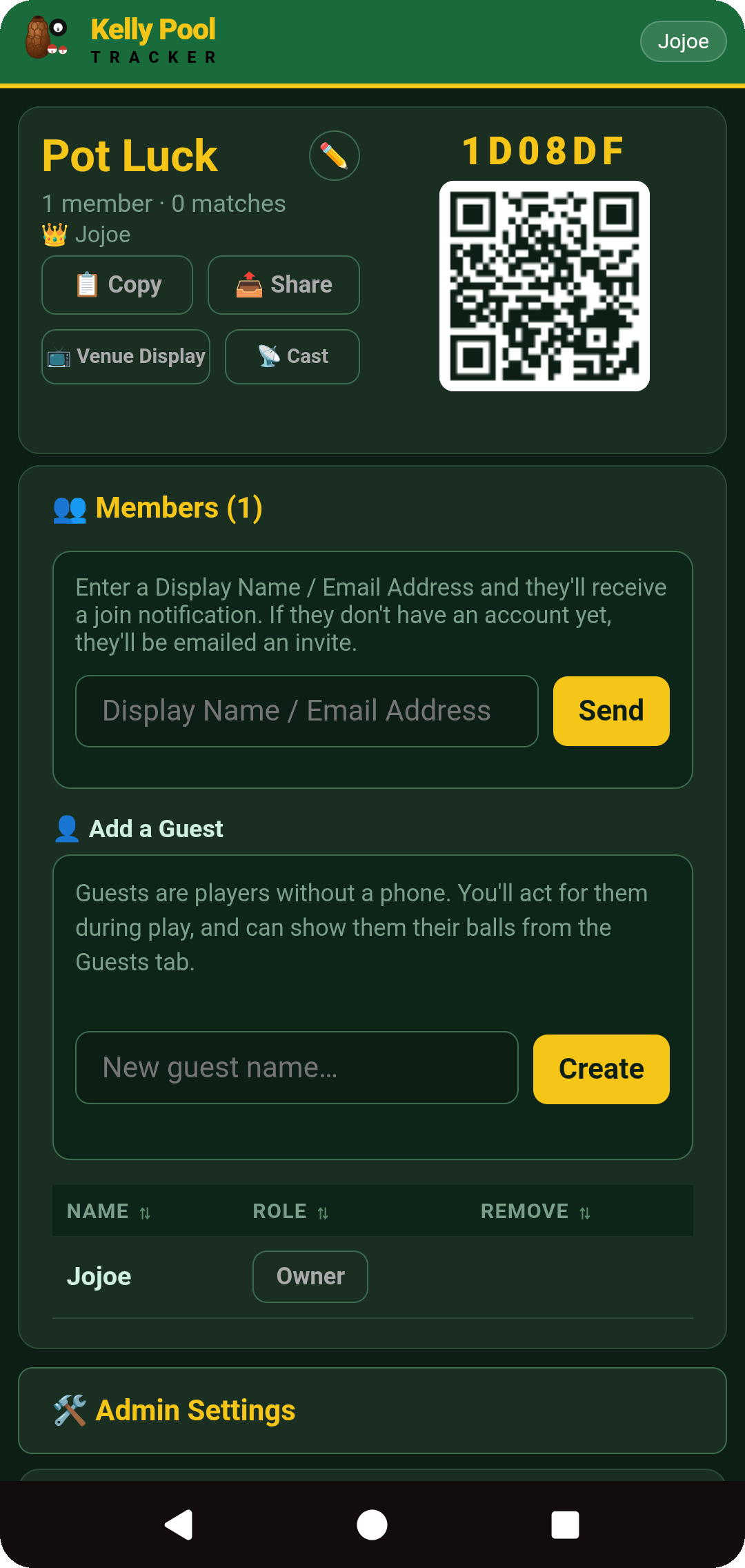
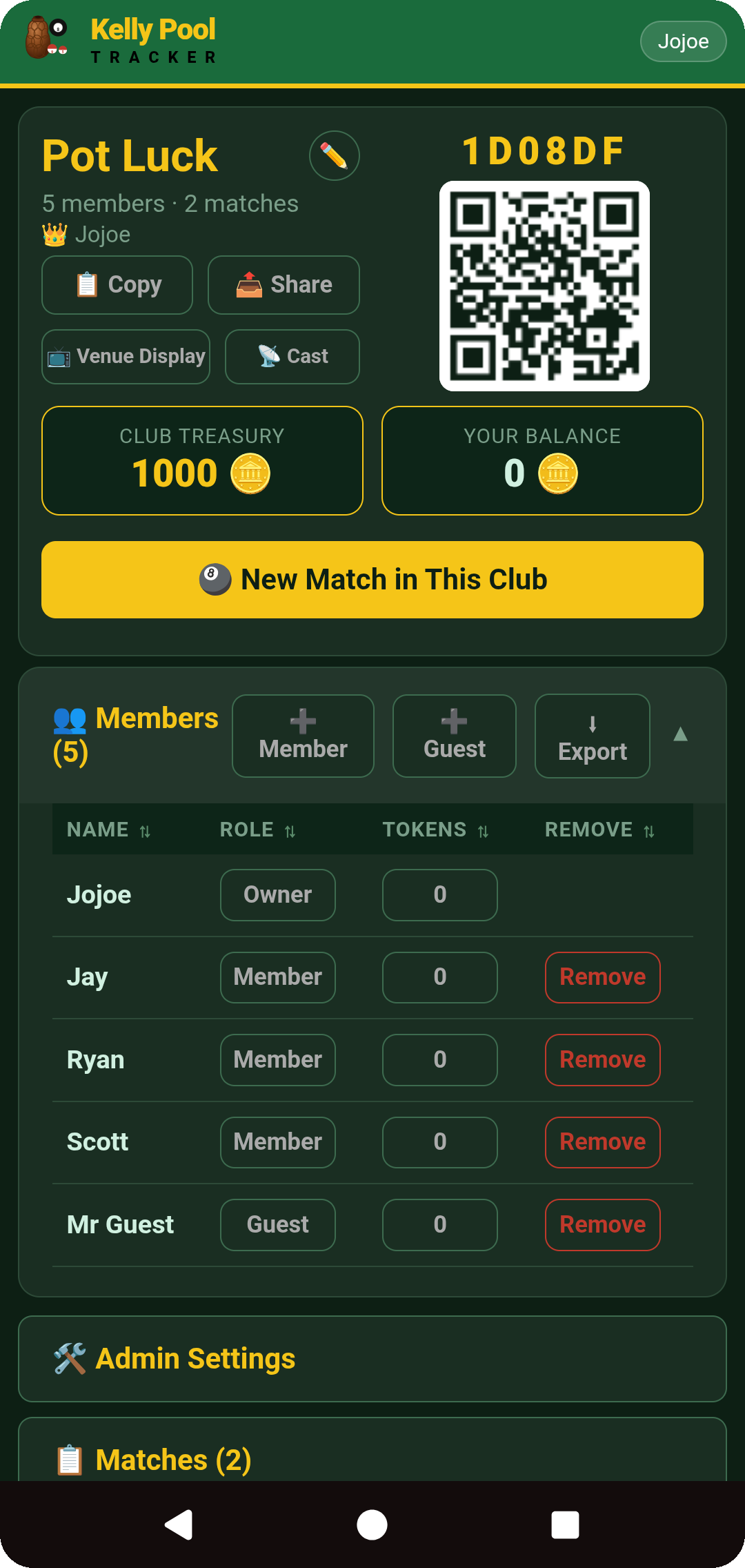
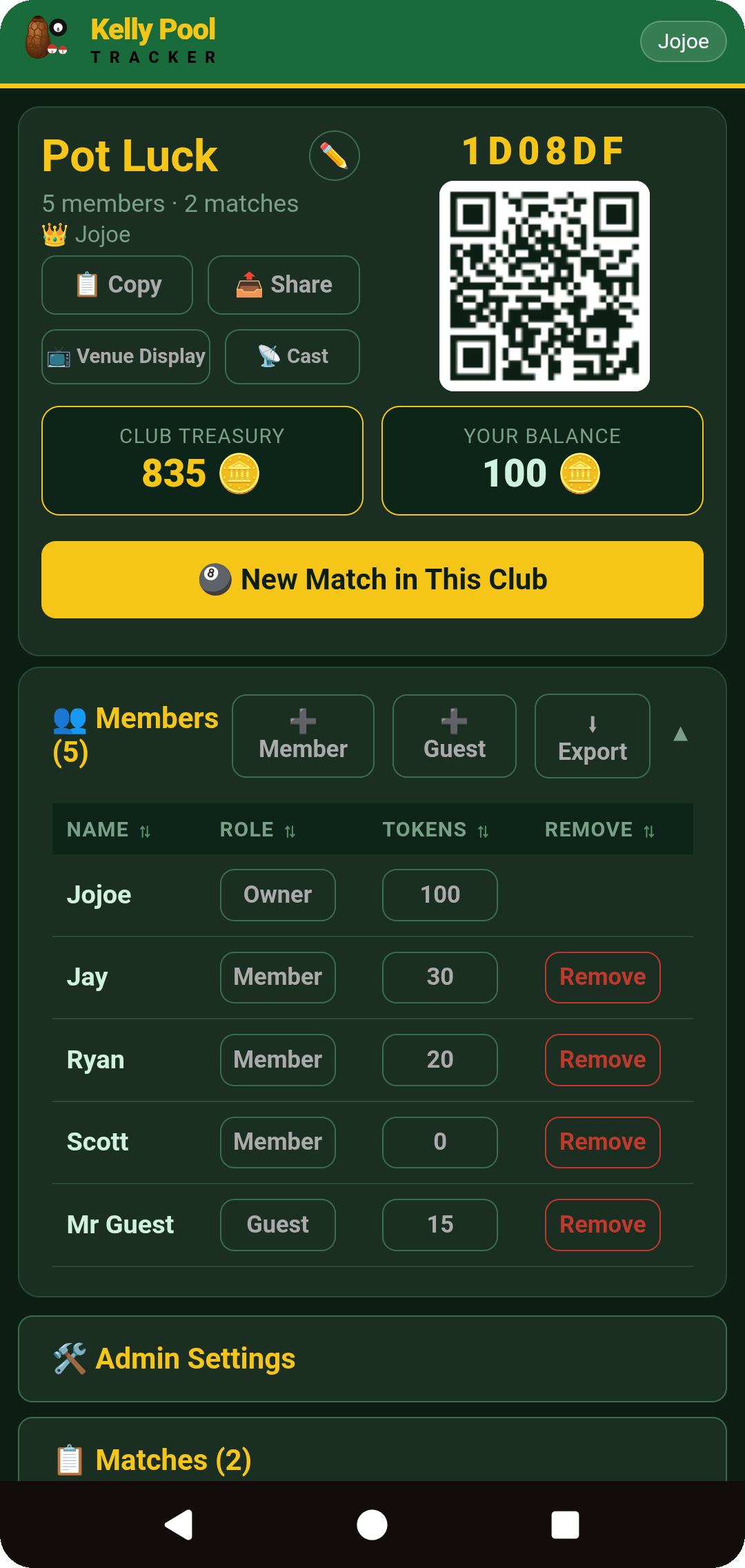
This is the hub for one club — everything branches off here. The six-character code and QR at the top are how people join — Copy or Share to send it. Venue Display and Cast put the live display on a big screen (see section 12). To invite someone directly, enter their display name or email under Members — existing accounts get a notification, new people get an email invite. Add a Guest creates a phone-less player instantly. The members table shows everyone's role (Owner / Admin / Member); tap a role button to promote or demote. Further down: Matches, All Time Stats, and — owner only — Admin Settings.
The owner can promote members to administrator. Deputy administrator permissions (below) control what a promoted admin can do — the club owner is not restricted by those settings.
Admin Settings
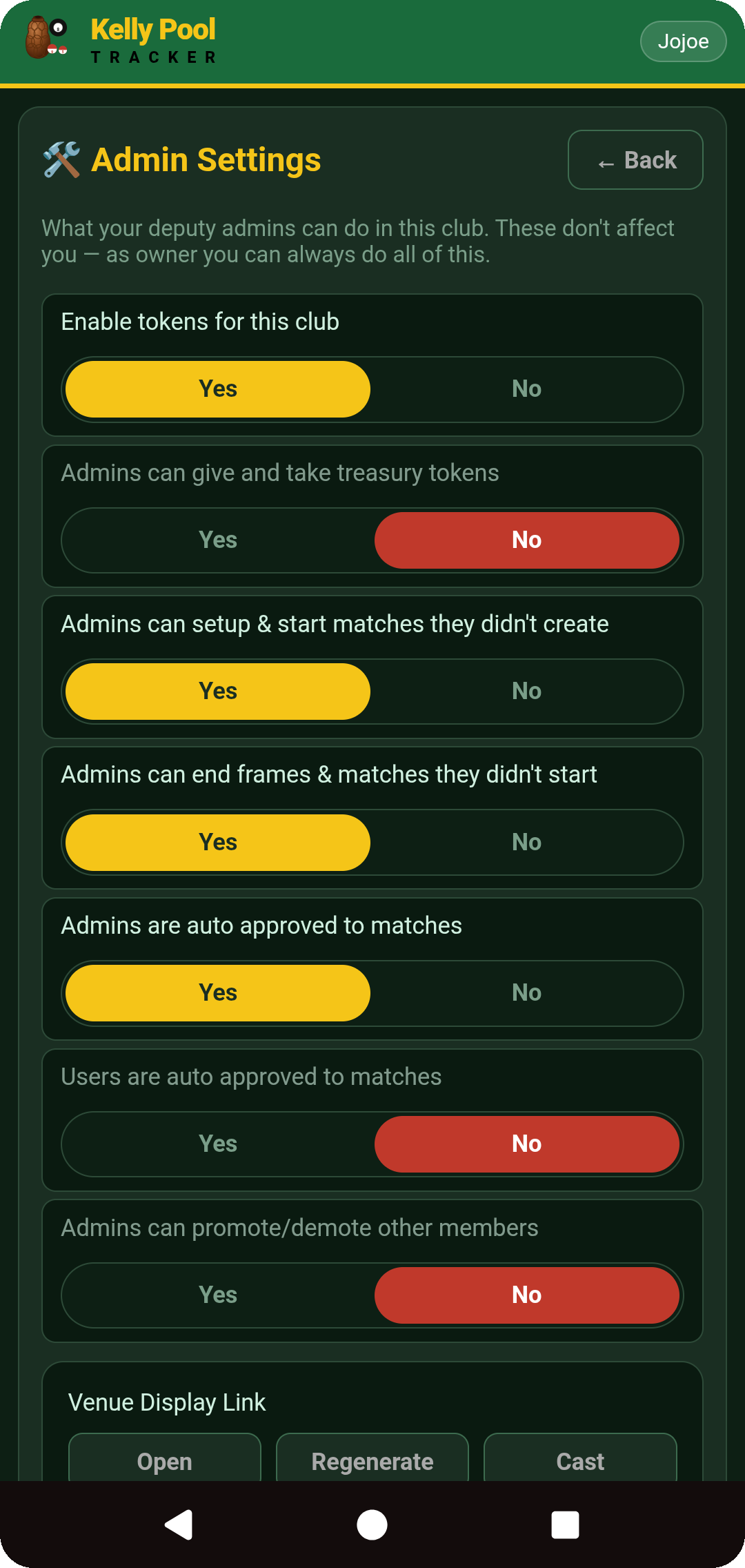
Owner-only, reached via 🛠 Admin Settings on the Club Screen. Each row is a Yes/No toggle controlling what a deputy administrator can do:
Enable tokens
Turns the club's token economy on or off — see section 13.
Give/take treasury tokens
Off = only the owner can move tokens in and out of the club treasury.
Set up others' matches
Off = only the admin who created a match sees its lobby setup.
End others' frames & matches
Off = only the owner or the match creator can end a frame/match.
Auto-approve admins
Off = admins still queue for approval to join a match.
Auto-approve members
Off = regular members need approval to join a match.
Promote/demote members
Off = only the owner can change anyone's role.
Also in Admin Settings: the Venue Display Link (Open / Regenerate / Cast) and the live-stream camera settings — see section 12. Camera and Auto Pot Detection settings live here too, as advanced options.
3. Joining a Club or Match
Joining a club and joining a particular live match are two different things — a club membership is ongoing, while joining a match only matters while that match is running. Both can either be auto-approved or wait for administrator approval, depending on the club's settings.
Joining a club
Invitation by email — the invite adds you to the club automatically once you register with that address.
Invitation through an existing account — appears as a notification on your home screen; accept and you're in.
Club link — opening it takes you straight to the join screen for that club.
Club QR code — scan it with any phone camera to open the join screen directly.
Club join code — enter the six-character code under Join a Club on the home screen.
Waiting for approval
If a club requires approval, requesting to join queues you up under the club's Join Requests — a bell badge in the admin's header shows how many are waiting. If the club auto-approves members instead, you're added immediately.
Joining a live match
Live match link — sent by an existing member, or found on your home screen if you're already in the club.
Live match QR code — shown on the Club Screen and in the match lobby.
Live match join code — the six-character code shown alongside the QR.
Copy, Share and the QR code
This same row sits at the top of both the Club Screen and every live match, next to the join code and its QR. Copy puts a join link on your clipboard, ready to paste into a text or group chat. Share opens your phone's native share sheet. The QR code is the fastest option in person — point any phone camera at it and it opens the join screen directly, no code to type.
Once you're a member of a club, its live matches show near the top of your home screen automatically, with a one-tap Join button.
No phone in hand tonight? Ask an administrator to add you as a Guest instead — see section 5.
4. Creating and Setting Up a Match
Creating the match
Tap 🎱 New Match in This Club from the Club Screen. Confirm the club (only matters if you admin more than one) and optionally give the match a name — a default name is used when the field is left blank. Tap Create Match to move into the lobby.
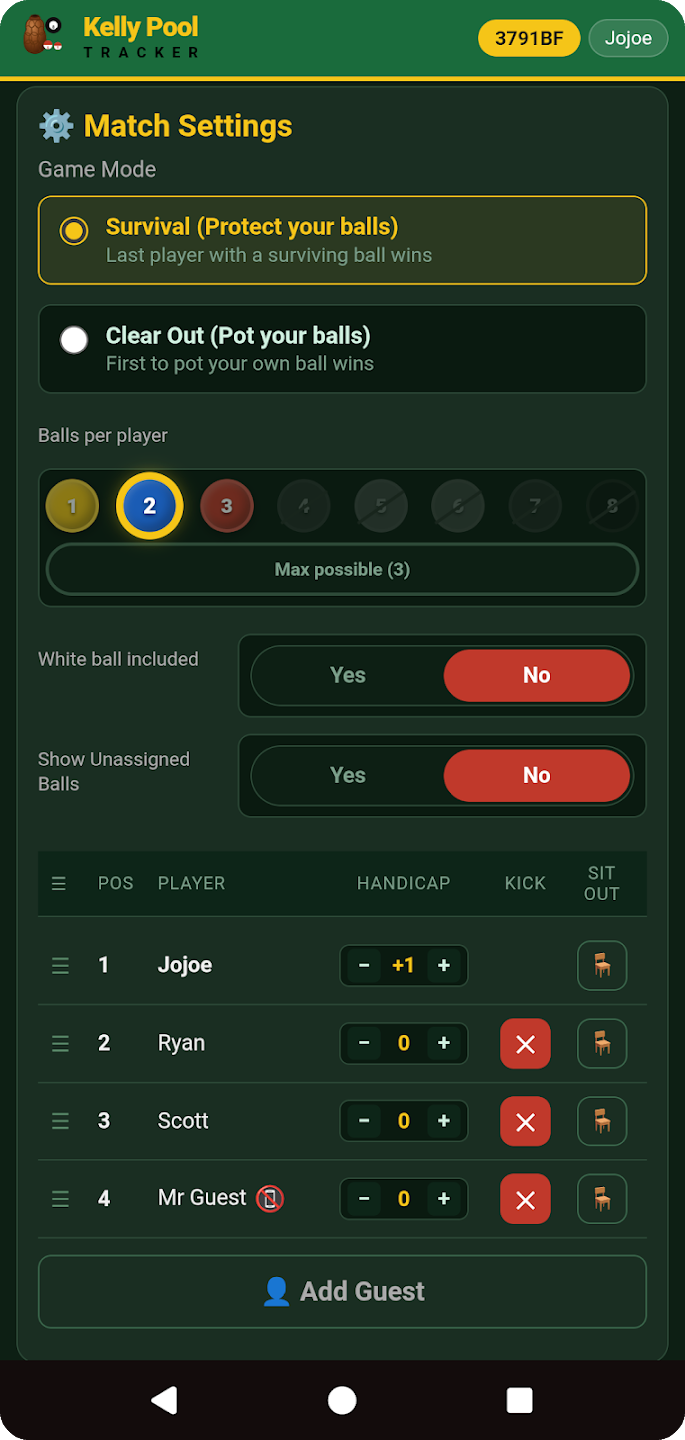
Selecting a game mode
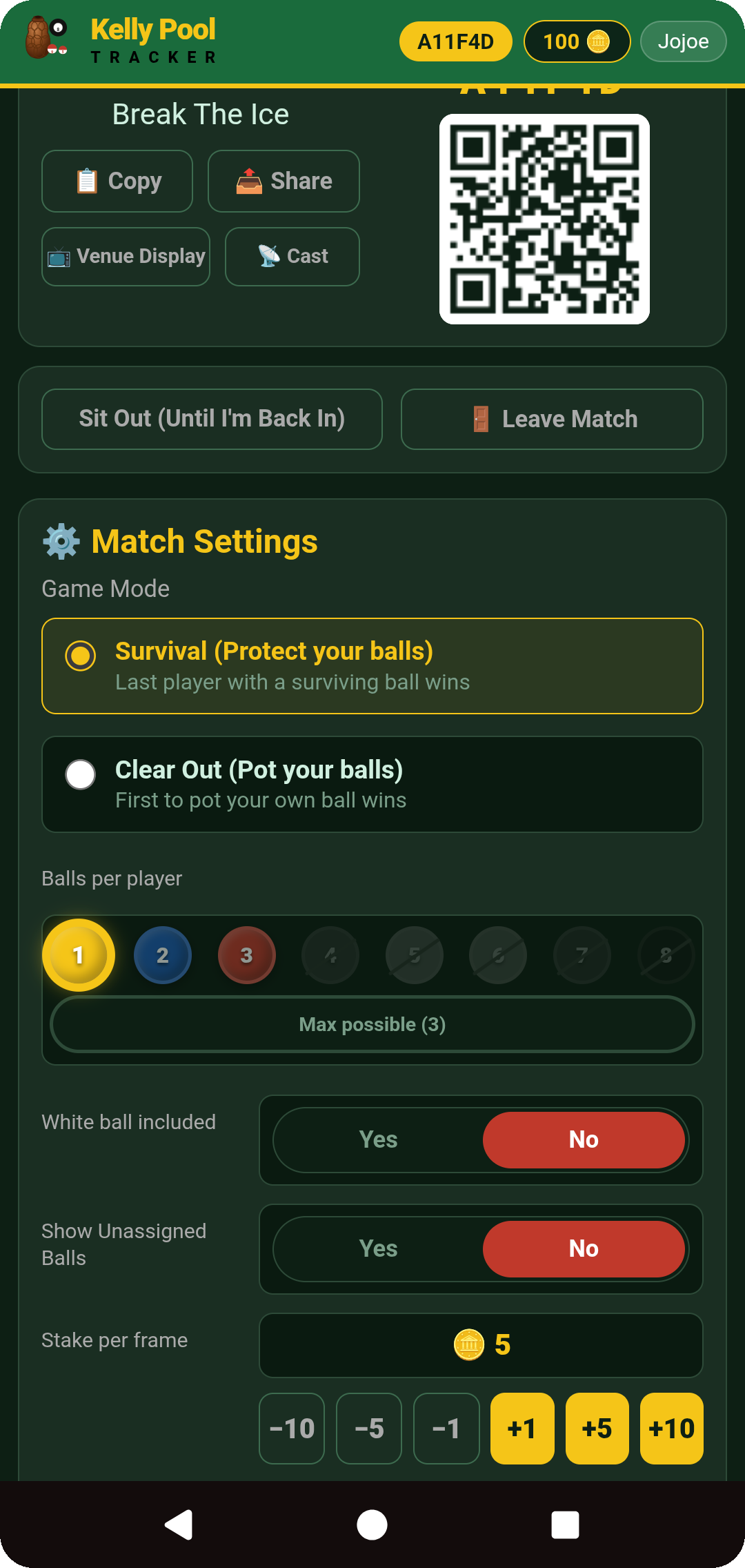
Survival — everyone is secretly assigned balls; potting one, whether it's your own or someone else's, knocks that ball's owner out. The last player with a surviving ball wins.
Clear Out — the goal flips: you're trying to be the one who pots your own last ball. If someone else pots it first, you're eliminated instead.
Balls per player and handicaps
Every player starts with a base number of balls, capped by how many players are in the match — Max possible fills it automatically. Individual handicaps add or remove assigned balls for a specific player. Extra balls have a different effect depending on the mode: in Survival, more balls mean more chances to be caught out; in Clear Out, more balls mean more to pot before you can win.
Additional frame settings
White ball included adds the white as a 16th ball, dealt and potted like any other (switched on automatically once the table is at maximum players). Show Unassigned Balls — with fewer players than a full table, some balls are dealt to nobody; normally this stays secret, but turning this on marks those spares on the live table so everyone knows which balls carry no elimination risk. An optional token stake is available once tokens are enabled for the club — see section 13.
Player list and playing order
The roster lists everyone who's joined, top to bottom in breaking order. Drag the ☰ handle to reorder manually, or tap Random order to shuffle. Along each row: Handicap adjusts that player's balls, ✕ removes them from the match, and 🪑 sits them out for the coming frame. Add Guest adds a phone-less player scoped to this match. The header shows the match's own join code and QR for late arrivals.
Kelly Pool Tracker privately assigns the balls once the frame starts — the administrator only controls, or randomises, the playing order.
5. Guests and Players Without Phones
A guest does not need an account or a phone. Guests can be added at club level (from the Club Screen's Members area) or scoped to a single match (from the lobby roster), and the administrator acts on their behalf wherever the app would otherwise need the guest's own phone.
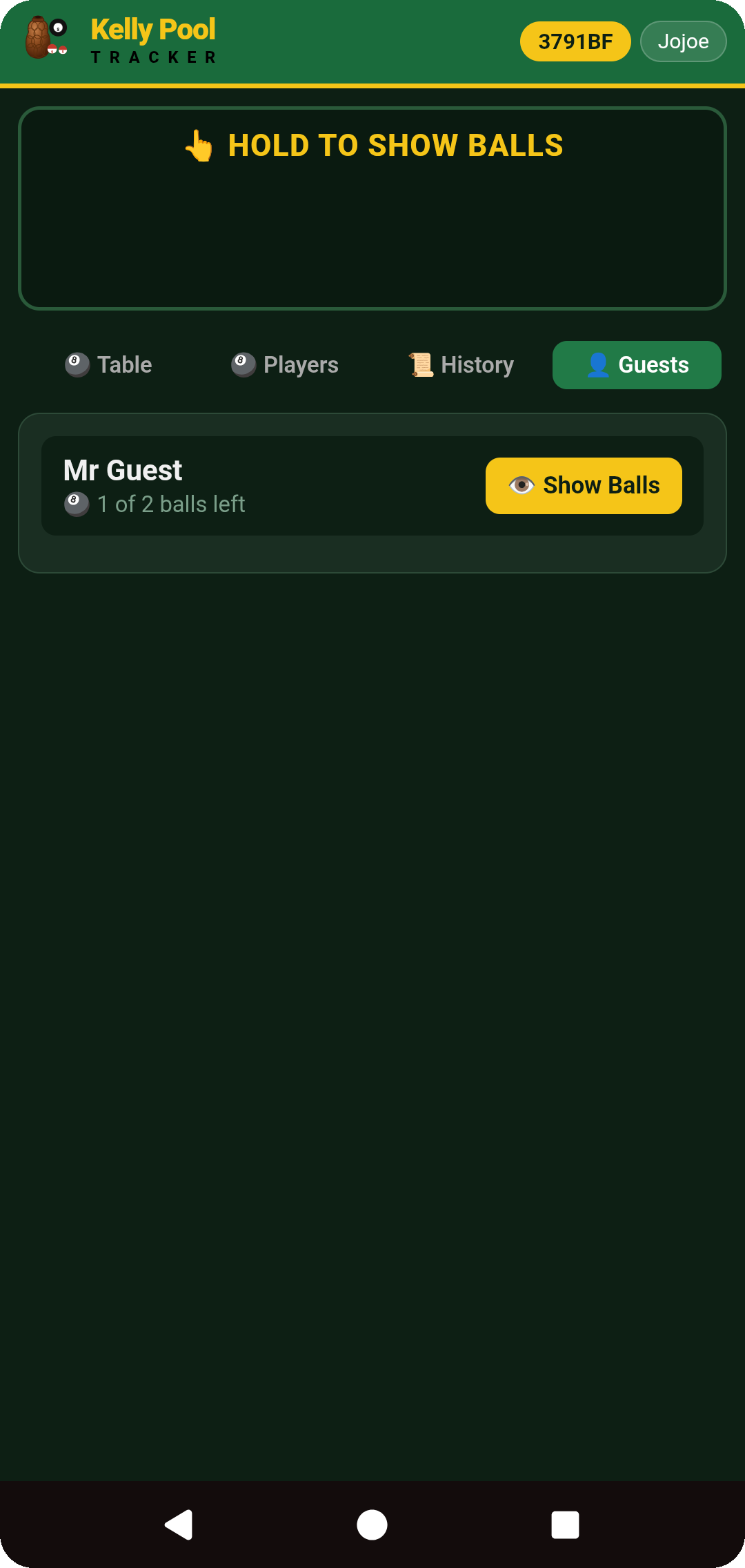
When the frame starts, players with an account get their secret balls automatically on their own screen. Guests don't, so the admin's phone handles their reveal instead, pass-the-phone style.
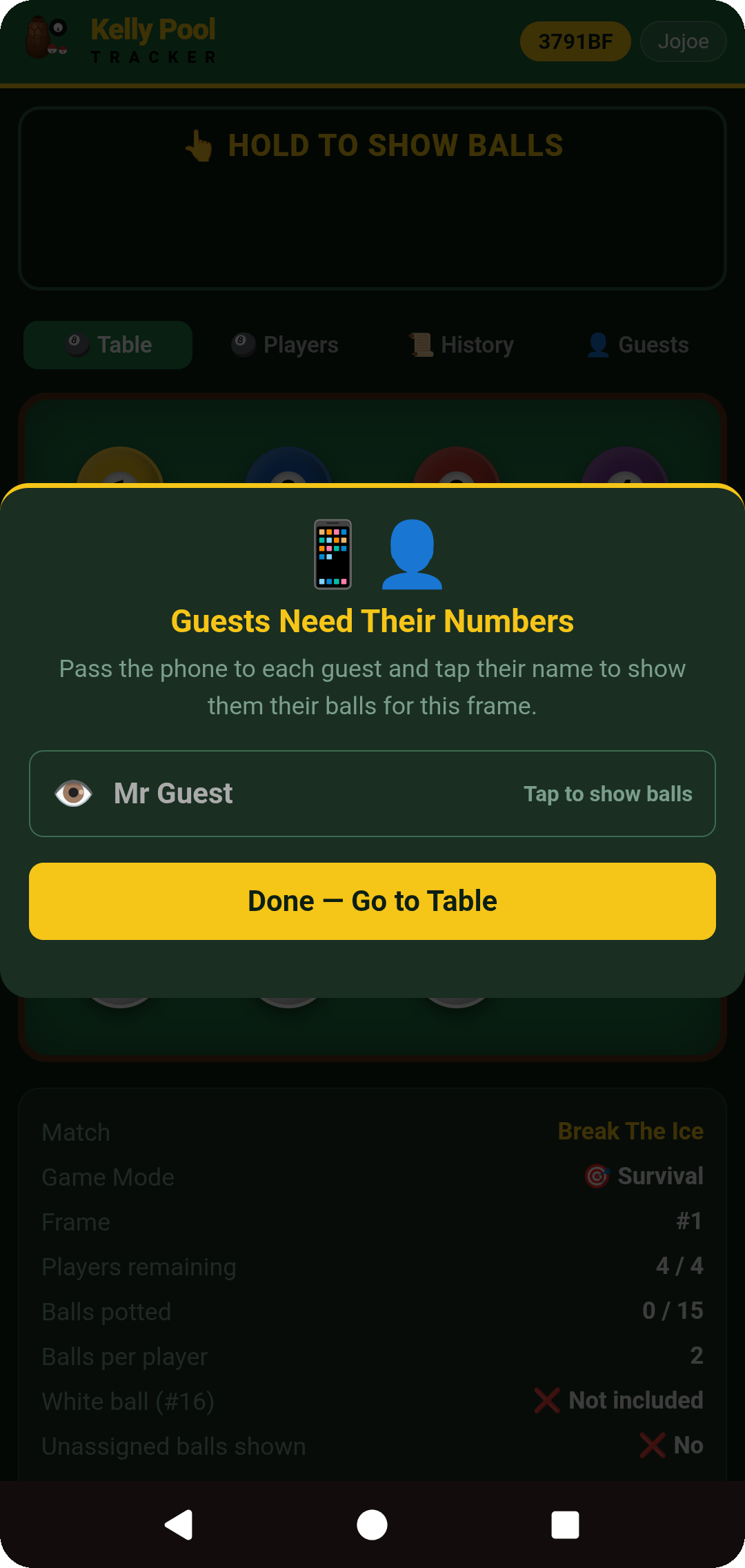
Guests need their numbers
At the start of each frame, the admin's screen lists any guest who hasn't seen their balls yet. Tap a guest's name once the phone is in front of them — or Done — Go to Table to skip ahead and reveal later from the Guests tab instead.
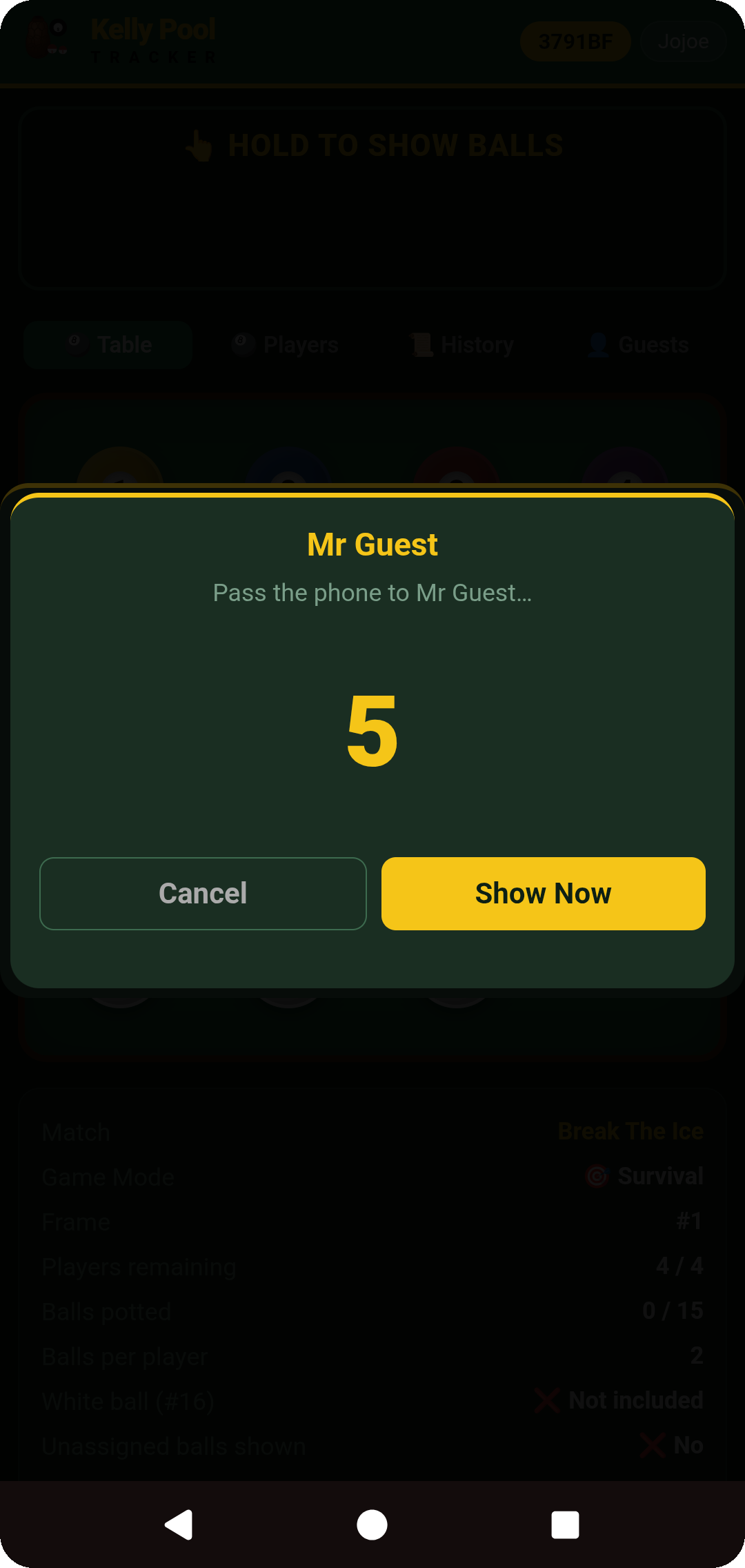
Passing the phone
A short countdown gives you time to physically hand the phone across before anything shows — tap Show Now to skip it, or Cancel to back out.
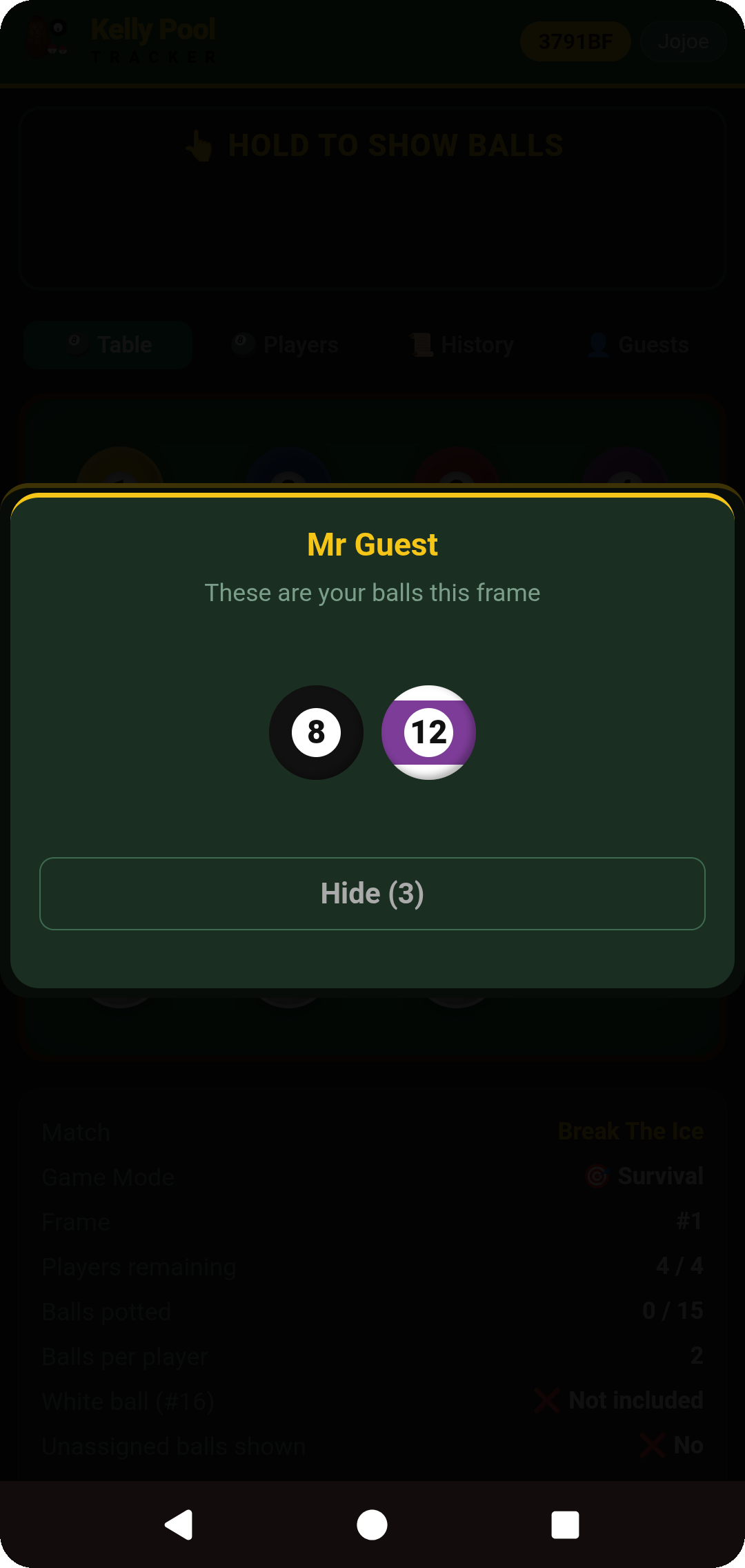
Their balls, briefly
The guest's balls show with a live Hide countdown so the screen closes itself automatically, or tap Hide to dismiss it. This reveal hides automatically either way.
Checking a guest's balls again
One row per guest showing how many of their balls are still standing, with Show Balls to run the pass-the-phone reveal again mid-frame if they've forgotten a number.
Guest statistics are kept with the club and match history the same way a signed-in player's are, so a guest's results still count toward the club's records.
6. Understanding the Live Match
During a frame, everyone's screen shows the same live view, split into four tabs — Table, Players, History and Guests — with a hold-to-show panel pinned on top for checking your own balls.
Table
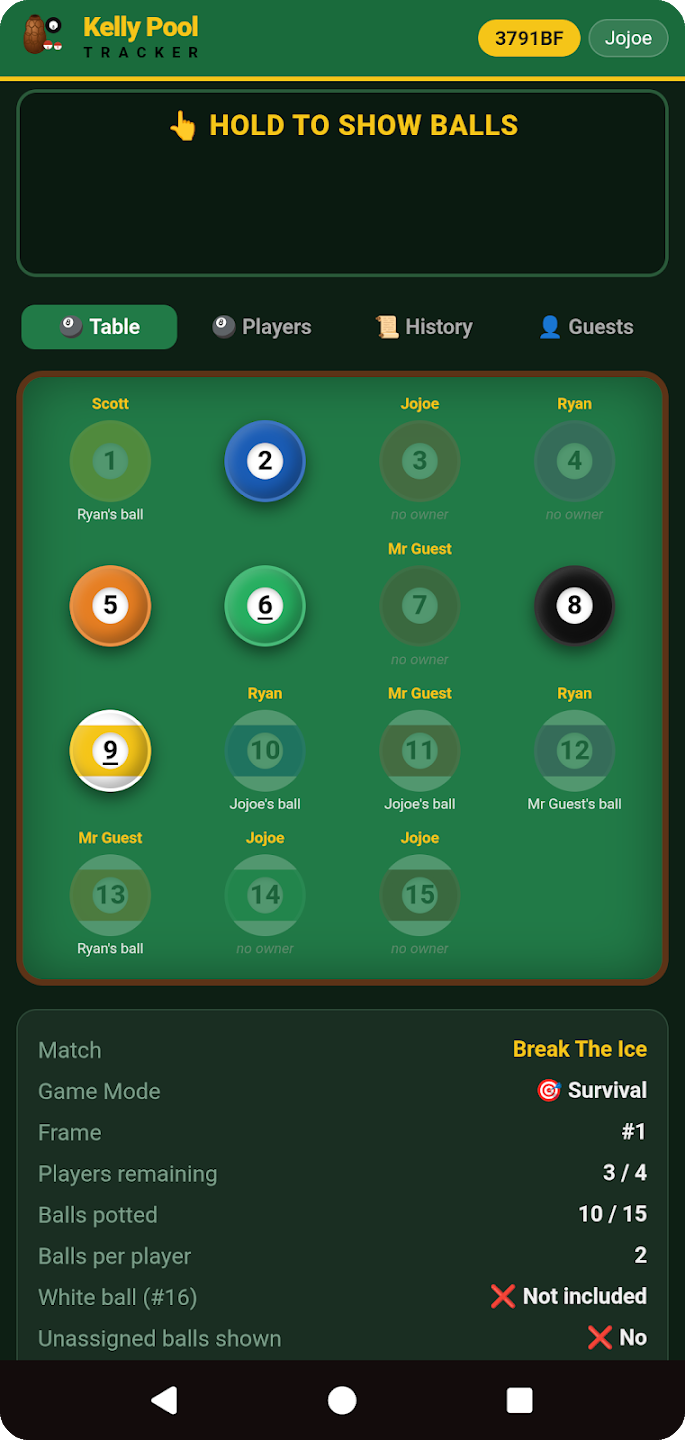
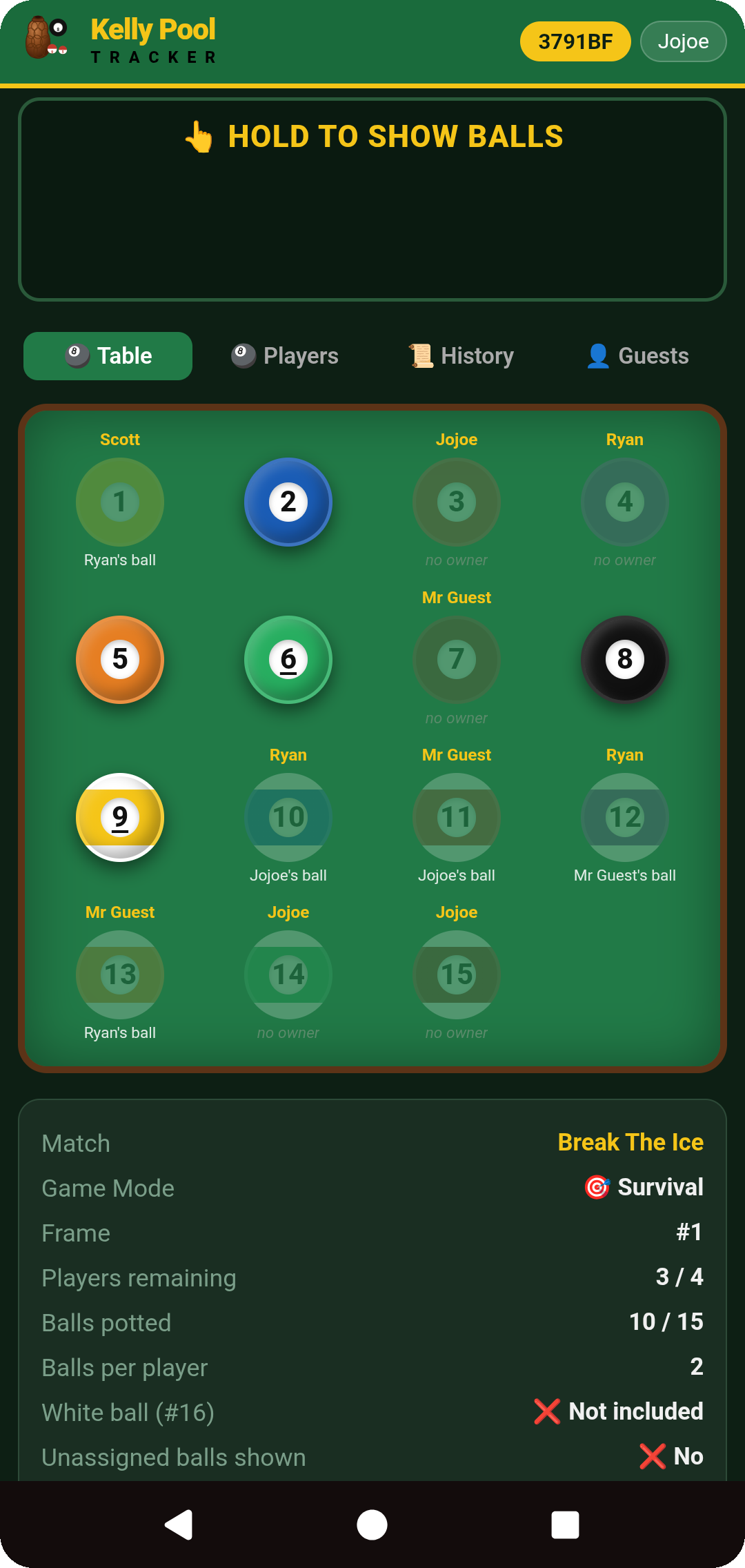
The grid is the live table: bright balls remain on the table, dimmed balls have been potted. Ownership stays private while a ball is still on the table — it's only revealed once the ball goes down. The summary card underneath tracks the frame at a glance: game mode, frame number, balls potted and players remaining.
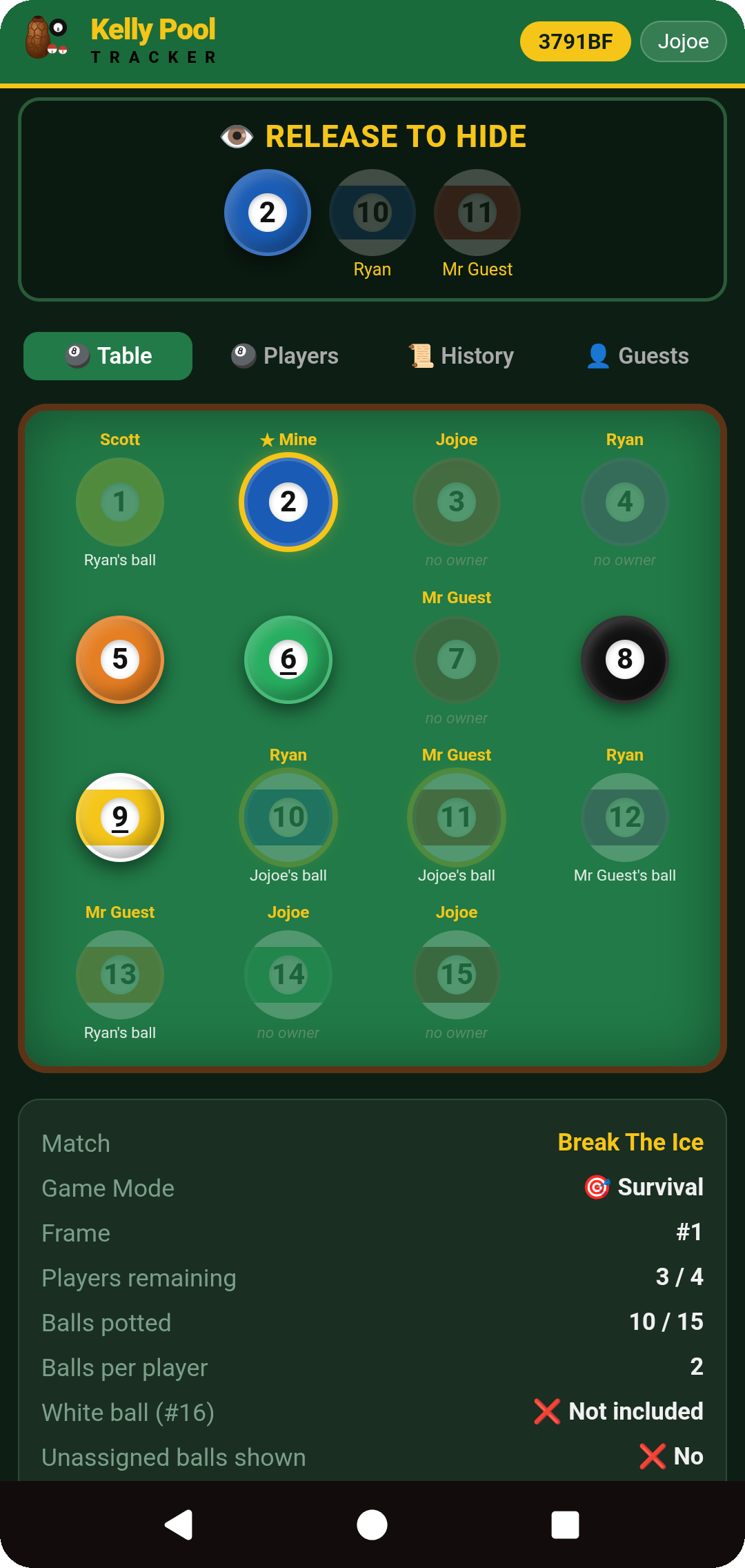
A player can privately reveal their own surviving balls by pressing and holding the panel at the top — they light up on the grid marked ★ Mine, and hide again the moment it's released. Nothing is left on screen for the table to see over your shoulder.
Players
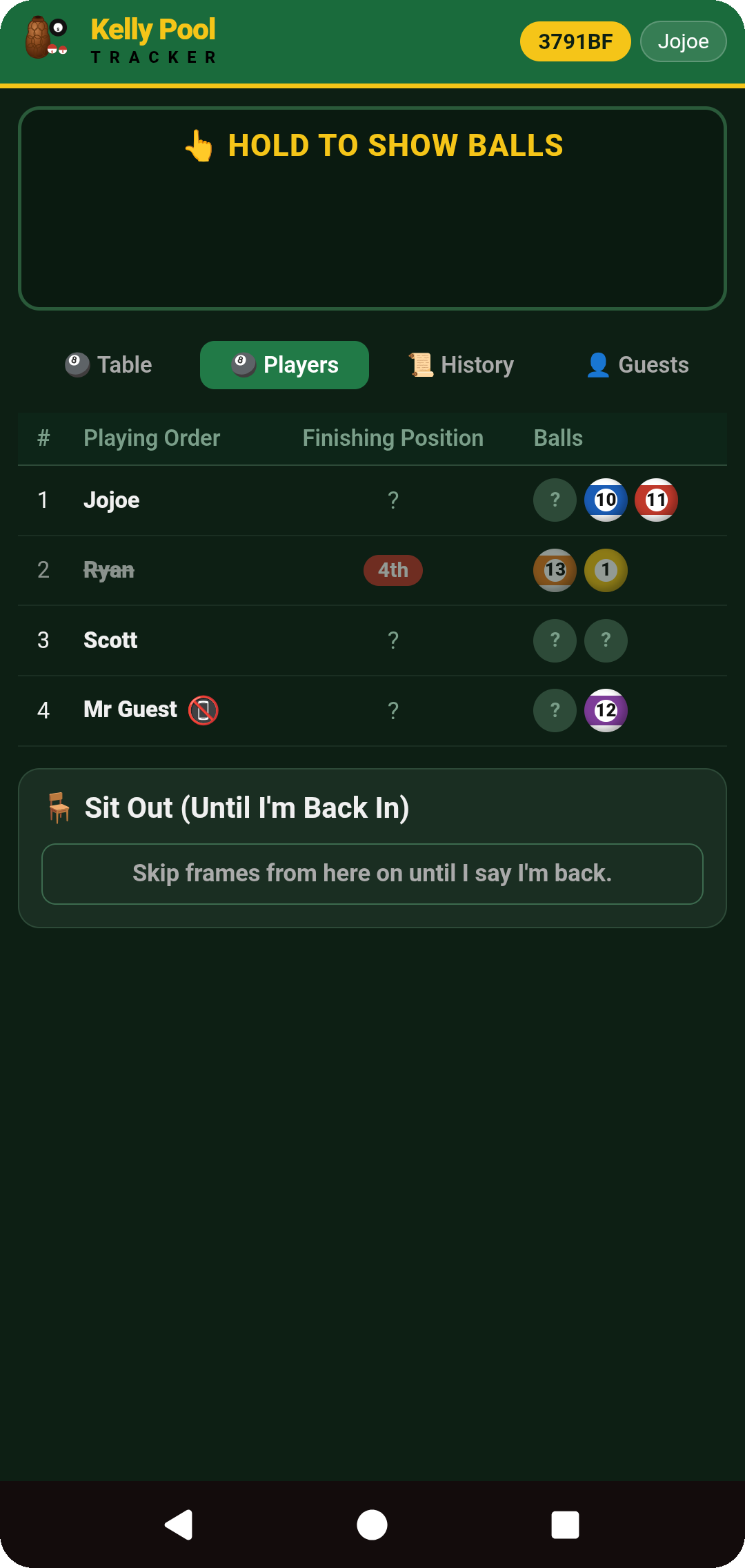
The playing order top to bottom, each player's current status, their finishing position once they're out (eliminated players are struck through), and their balls — potted ones shown face-up, surviving ones masked. Sit Out controls for your own seat live here too — see section 9.
History
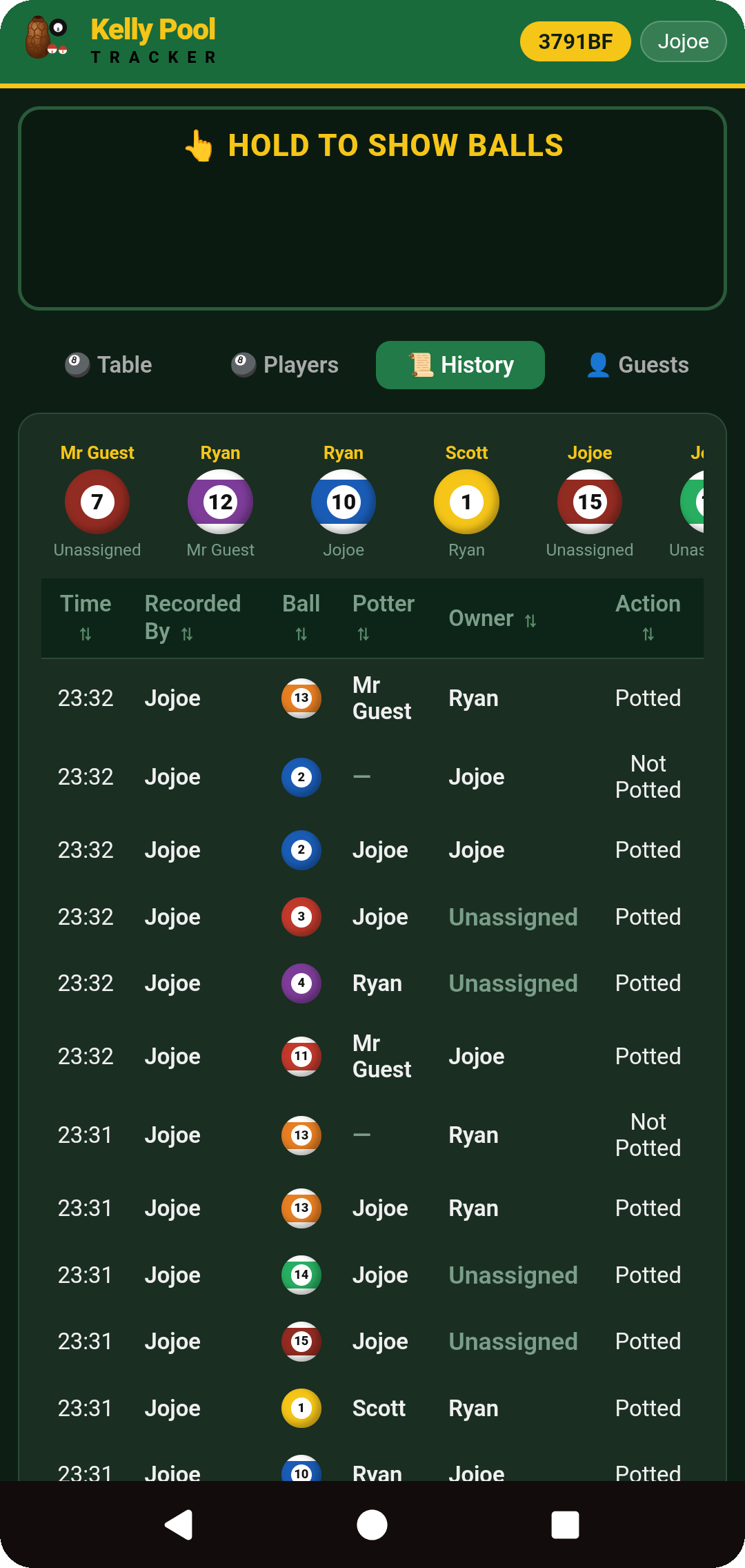
A running pot-by-pot log of the frame, with a column for each field: time, who recorded it, the ball, who potted it, whose ball it turned out to be, and the action — including reversals. Every column sorts.
Guests
Administrators can privately show a guest's remaining balls again from here at any point in the frame — see section 5.
7. Recording and Correcting Pots
Record a Pot
Tap the ball that was potted, select who physically potted it, then confirm the entry. The player who potted a ball and the player who owned it may be different — Kelly Pool Tracker records both.
Confirmation
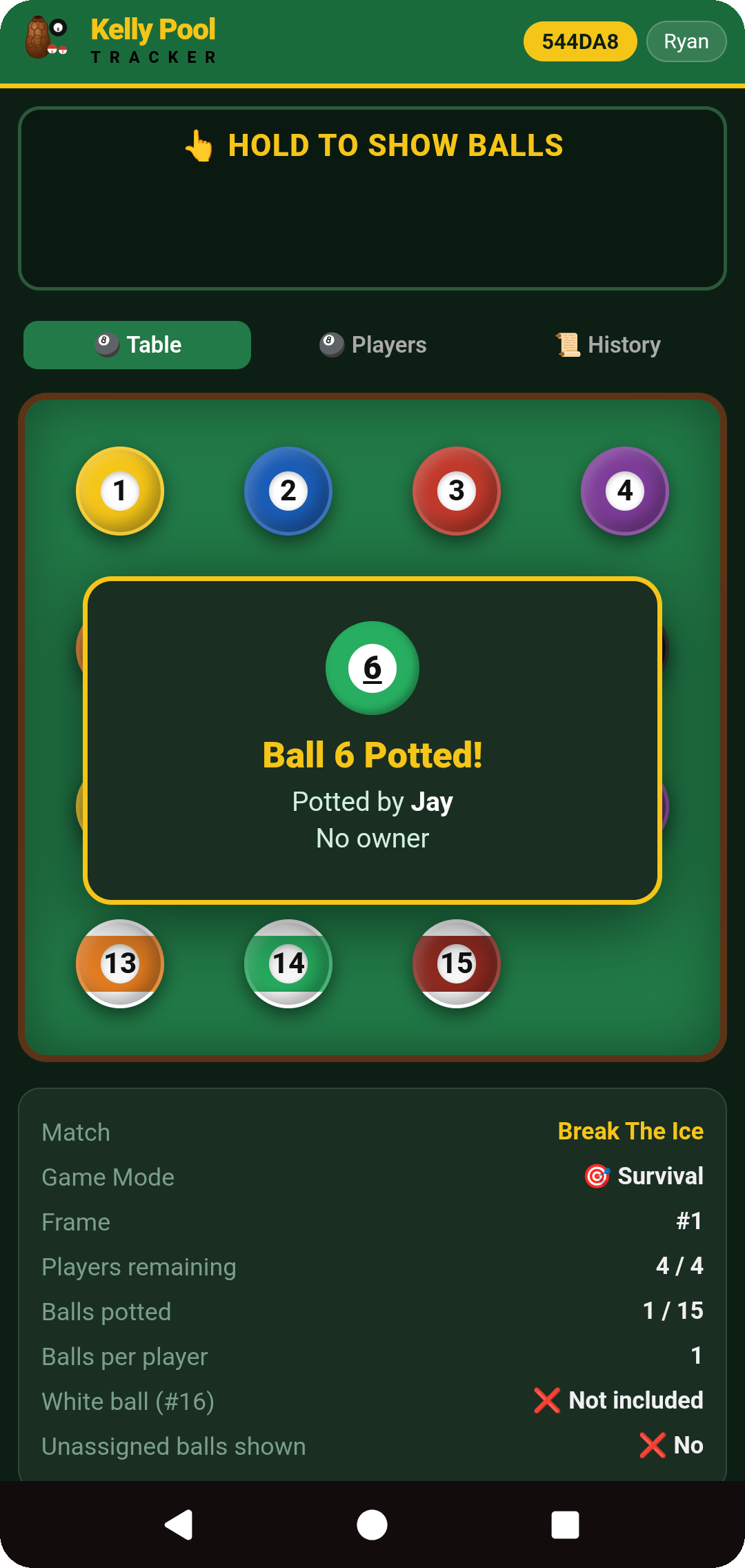
Once confirmed, the potted ball is shown full-screen for a moment along with who potted it, giving the person recording the pot a clear confirmation that it registered correctly.
Correct a Pot
Tap the ball that was incorrectly marked as potted and select Put it back on the table, then confirm the reversal. It reappears live for everyone, and the correction is kept in the History tab alongside the original entry rather than silently deleting it.
8. Finishing a Frame and Starting the Next
The final pot result
The winning pot is shown — the ball, the winner, who potted it, and anyone eliminated by it. This is not the frame result yet: a Frame Finished? countdown holds it open first.
Undoing a mistaken final pot
While the countdown is running, tap Wait — Mistaken Pot to wind the final pot back if it was entered incorrectly. This is different from voiding a frame entirely — undoing the final pot simply returns to live play; a void frame is handled separately (see section 10).
Confirming the frame
Tap ✓ Frame Finished to confirm the result early, or let the countdown finish on its own. Once confirmed, the result is locked in and the podium is shown.
Between frames
Once the frame is confirmed, the administrator can, in any order:
Change eligible next-frame settings.
Reorder the playing order manually, or randomise it.
Sit players out, or bring sitting-out players back in.
Add guests.
Start the next frame.
End the overall match instead.
Ending the overall match is separate again from finishing a frame — see section 10 for what happens when the match itself is ended.
9. Sitting Out, Rejoining and Leaving
These are three different actions. Sit Out keeps a player in the match but skips them for future frames until they're brought back in. Back In makes a sitting-out player eligible for the next frame. Leave Match removes a player from the match entirely, rather than just skipping a frame.
If a frame is already underway when a sit-out is chosen, the player finishes that frame first — the change only takes effect from the next frame onward.
Sitting yourself out
From a live match, tap Sit Out (Until I'm Back In) to skip every frame from the next one onward without leaving the match. Tap the same spot again whenever you're ready to be dealt back in. Leave Match removes you from the match entirely instead.
An administrator sitting another player out
From the lobby or Frame Over roster, an administrator can toggle any player's seat on their behalf — the same finish-the-current-frame-first rule applies.
Watching from the sidelines
Once a player is eliminated, or sitting a frame out by choice, their screen switches to a spectator view — they can still follow the table live, and the Your Balls tab shows what they were dealt for that frame even after elimination.
10. Ending a Match, History and Exports
A few related actions are worth telling apart:
Finishing a frame confirms its result and moves to the podium (see section 8).
Voiding a frame discards it rather than confirming a result — this cannot be undone.
Ending the match closes the whole session — also permanent, and settles the match into the club's stats and history.
Match and Frame History
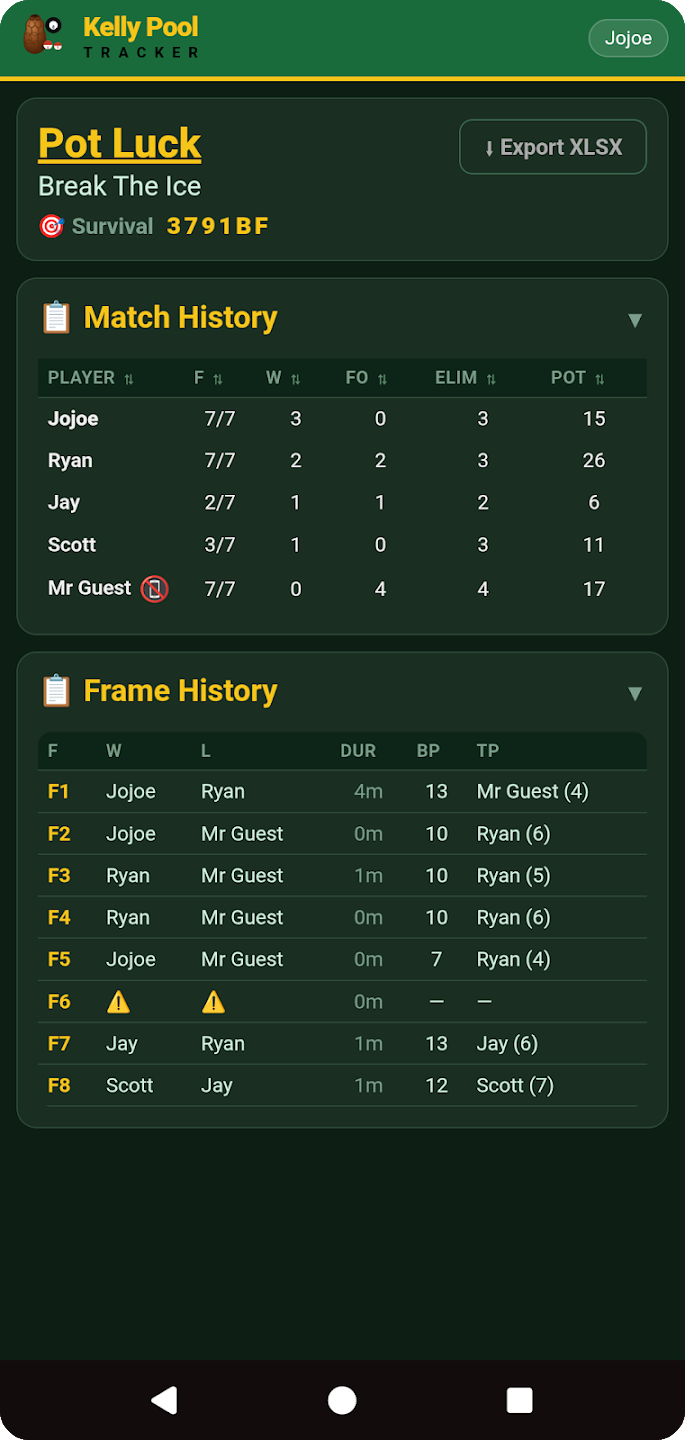
Match History gives the per-player breakdown: frames played, wins, frame-overs, eliminations dealt, and total pots.
Frame History logs every frame — winner, loser, duration, balls potted, and the frame's top potter. Tap any frame row to open its full pot-by-pot history: every ball that went down, who potted it, whose it was, and whether any pots were reversed — the same detail you had live, now as a permanent record.
Both tables sort by any column.
⬇ Export XLSX downloads the match, frame and token history together as one spreadsheet workbook. Club-level records — members, all-time stats and token history — are separately exportable as CSV (see section 14).
A voided frame is discarded rather than recorded — it won't appear in Frame History or count toward statistics, and the action can't be undone, so it's worth double-checking before confirming.
11. Account and Personal Settings
Getting there
Tap your name or avatar in the header to open your account page.
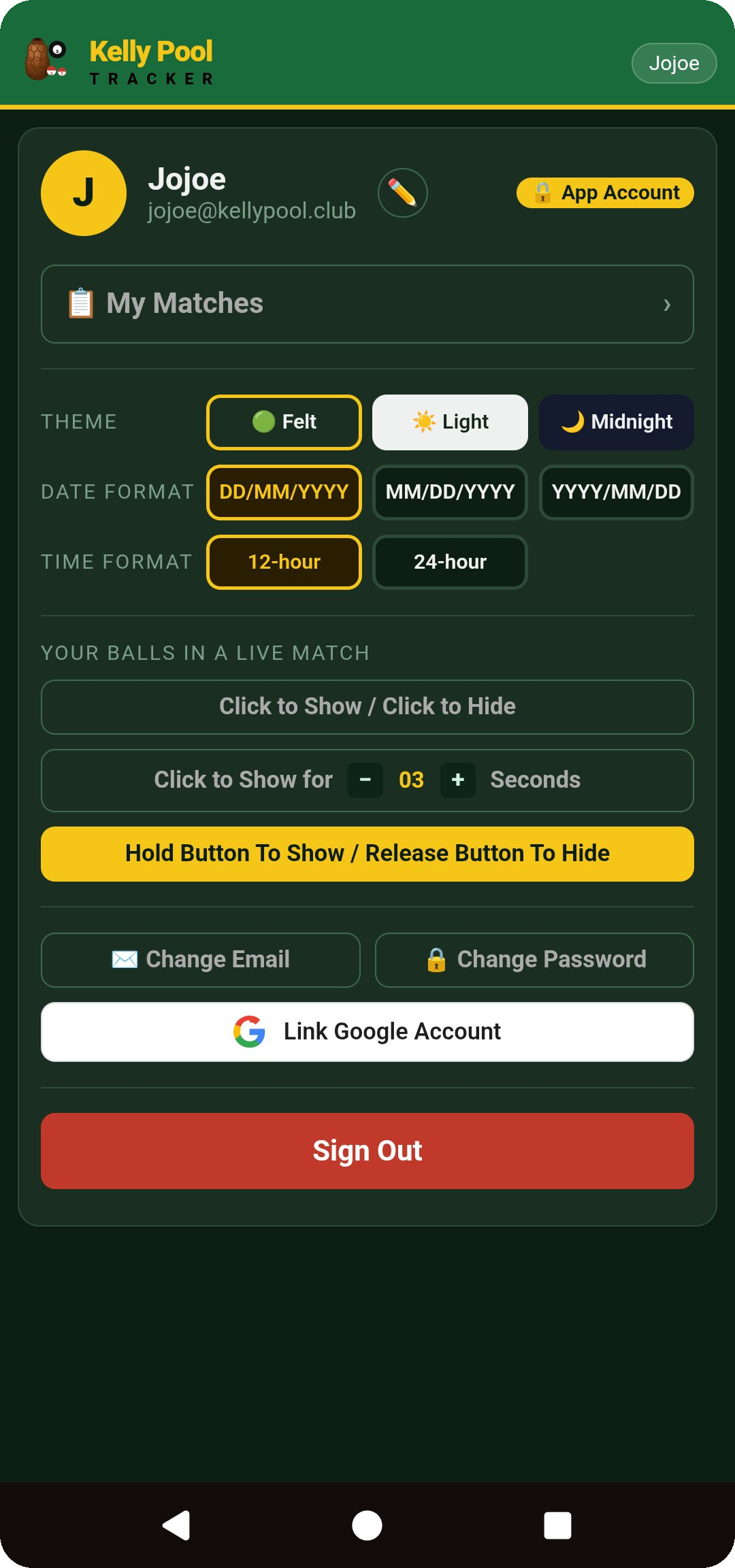
Appearance and Formats
Theme — Felt, Light or Midnight.
Date format.
12-hour or 24-hour time.
Revealing Your Balls
Click to show, and click again to hide.
Timed click-to-show — balls hide again automatically after a set number of seconds.
Hold to show, release to hide.
Sign-In and Security
Change your email address.
Change your app password.
Link or change a Google account.
Signed in with Google only? You can still add an app password, useful if you ever want to sign in somewhere Google sign-in isn't available.
Forgotten password — a reset link is sent to your registered email.
Account Actions
Sign out.
Delete account — permanent, and asks for your password or your typed name to confirm.
Deleting removes your account and personal details; your name in past matches is replaced with "Deleted User" rather than the match records themselves being removed.
My Matches, your own match history across every club you've played in, is covered in section 14.
12. Venue Display and Casting
Every club gets its own dedicated Venue Display — a full-screen page built to live on a television or monitor above the table for the whole session.
What the Venue Display shows
During a match:
The live table, updating automatically as pots are recorded.
Potted balls, playing order and player standings and status.
Match and frame progress.
The match's join code and a QR code, so late arrivals can join straight from the TV.
Between matches:
The club's all-time leaderboard, with the club's join code still shown.
Opening the Venue Display
It can be opened from the Club Screen, from the live match screen, using the dedicated Venue Display Link in Admin Settings, or directly in a browser on a PC, television or other connected device.
Casting
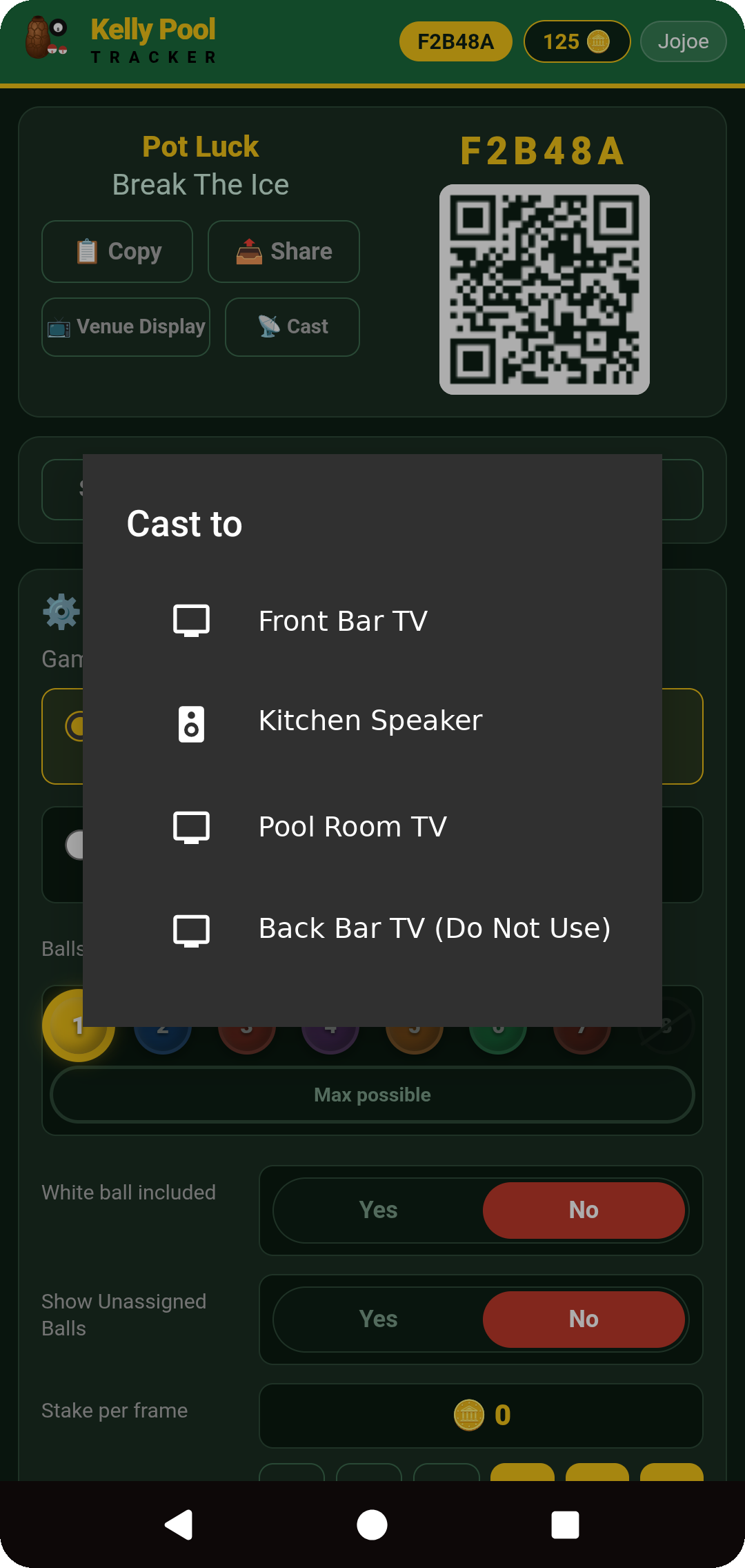
Tap Cast on the Club Screen or in Admin Settings to open the standard Google Cast picker, listing the Chromecast and Google TV devices found on your network — tap one and the Venue Display starts playing there straight away.
Keeping the display running
No player account is required to view it. Once opened or cast, the display updates on its own — the administrator does not need to keep casting, or leave the page open on their own phone, for it to keep working.
Opening the link on a phone
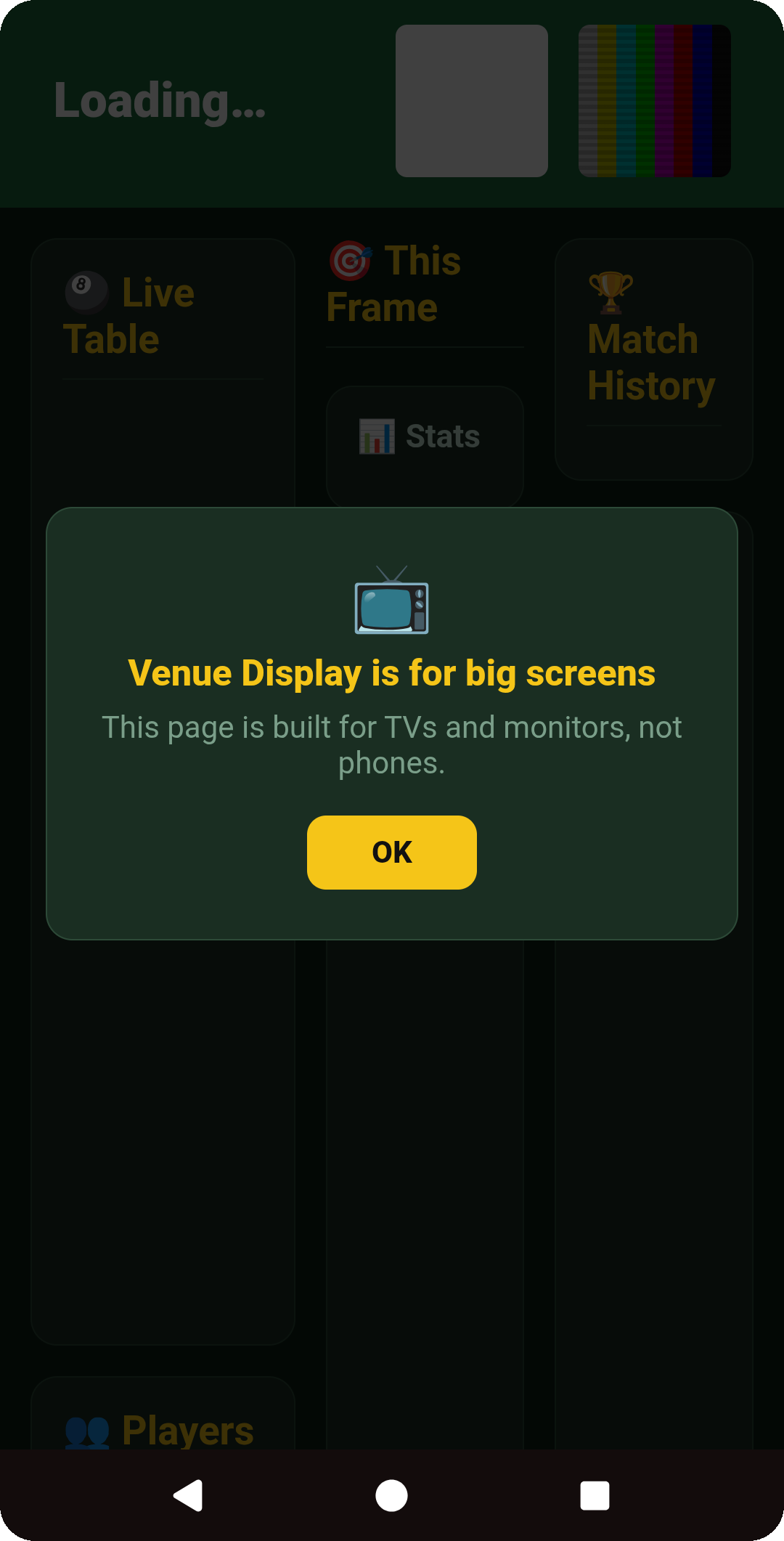
Tap the direct Venue Display link on your own phone and you'll see a heads-up instead of the display itself — it's built for TVs and monitors, not handheld screens. Use Cast instead, or open the link on the TV's own browser.
Display link administration
From Admin Settings you can open the Venue Display link, copy or share it, or regenerate it. Regenerating invalidates the previous link immediately — worth doing if it's ever shared with the wrong people.
Optional live stream and pot detection
Admin Settings also has advanced, optional camera features: pointing the Venue Display at a live-stream camera URL, and an experimental Auto Pot Detection setting that prompts players to confirm a pot the camera thinks it saw. These sit separately from the core Venue Display and are not required to use it.
13. Tokens
Tokens are optional and are not currency. They have no monetary value, and cannot be purchased, sold, withdrawn or exchanged for real money. Kelly Pool Tracker records token activity but does not hold money or settle any real-world agreement. The club owner is responsible for enabling tokens and for the permissions granted to other administrators.
Enable tokens
An owner or admin flips Enable tokens for this club to Yes in Admin Settings — the first time, you'll accept the token notice once. Everything below only matters once tokens are on.
Add tokens to the club treasury
The Club Screen grows a Club Treasury card and a Your Balance card, and every member row in the roster gets a Tokens column — starting at zero until the treasury hands some out.
Give tokens to members
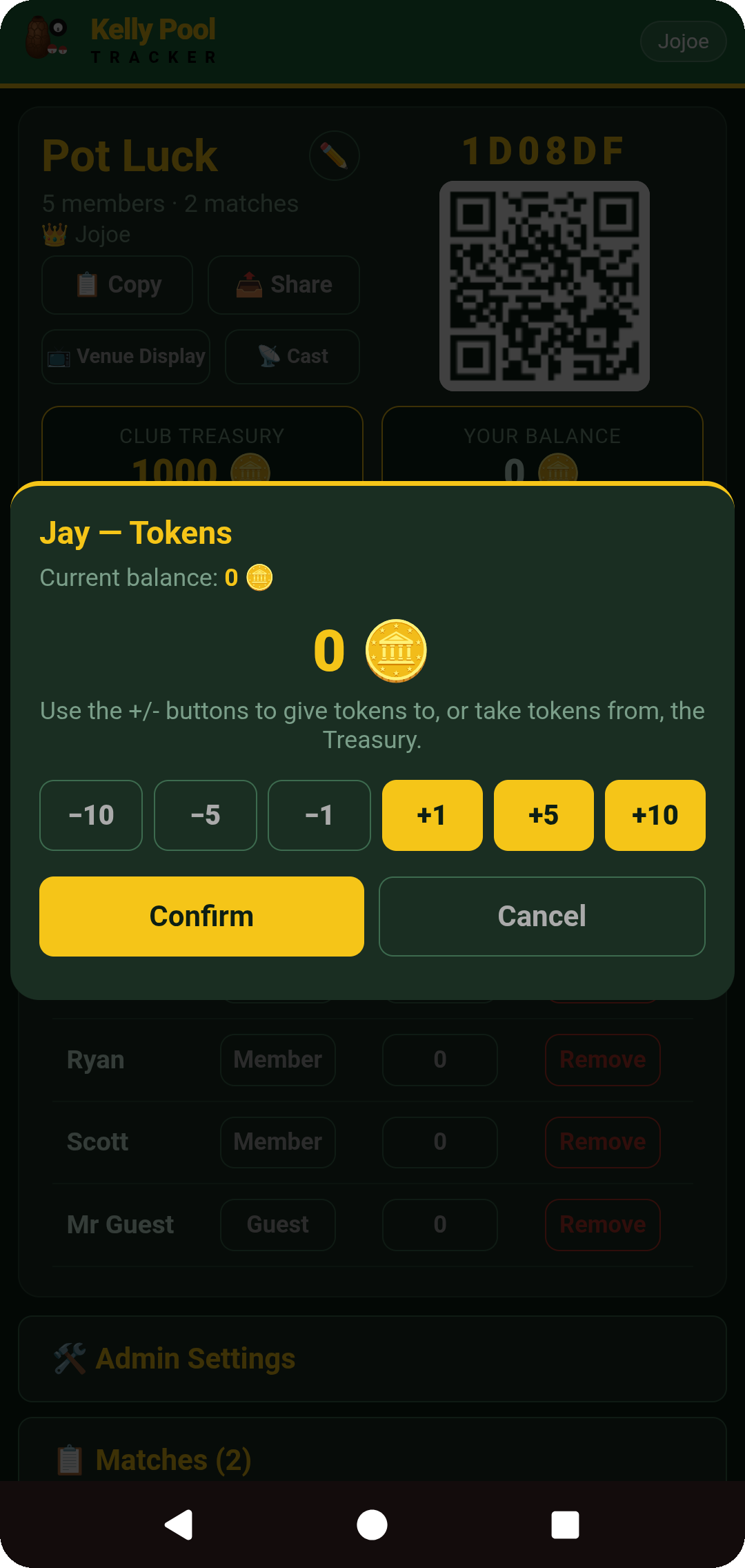
Tap a member's Tokens number on the roster to give or take from the treasury with the +/- buttons. Whether admins other than the owner can do this is its own Admin Settings toggle.
Balances in play
Once tokens have been handed out, the Club Treasury shows what's left and each member's balance reflects what they're holding — ready to stake once a match starts.
Set an optional stake
With tokens on, the match lobby gets a Stake per frame control, and your balance sits in the header throughout the match.
Each player opts in or out
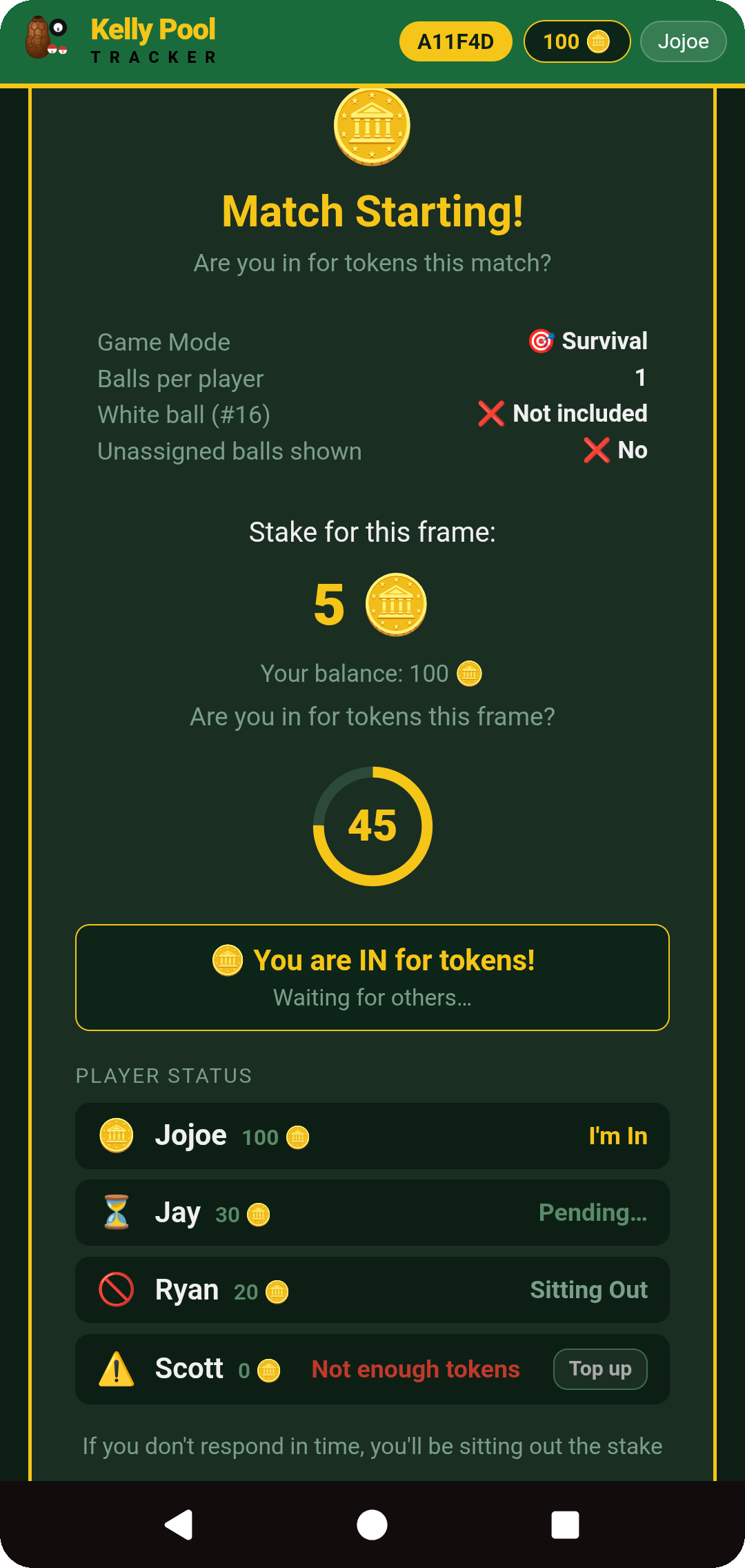
Before every frame, players get a short countdown to confirm they're in for tokens at the set stake. Stakes are deducted from opted-in players when the frame begins — sit a frame out and you're just playing for fun that frame, tokens untouched.
Payout and token history
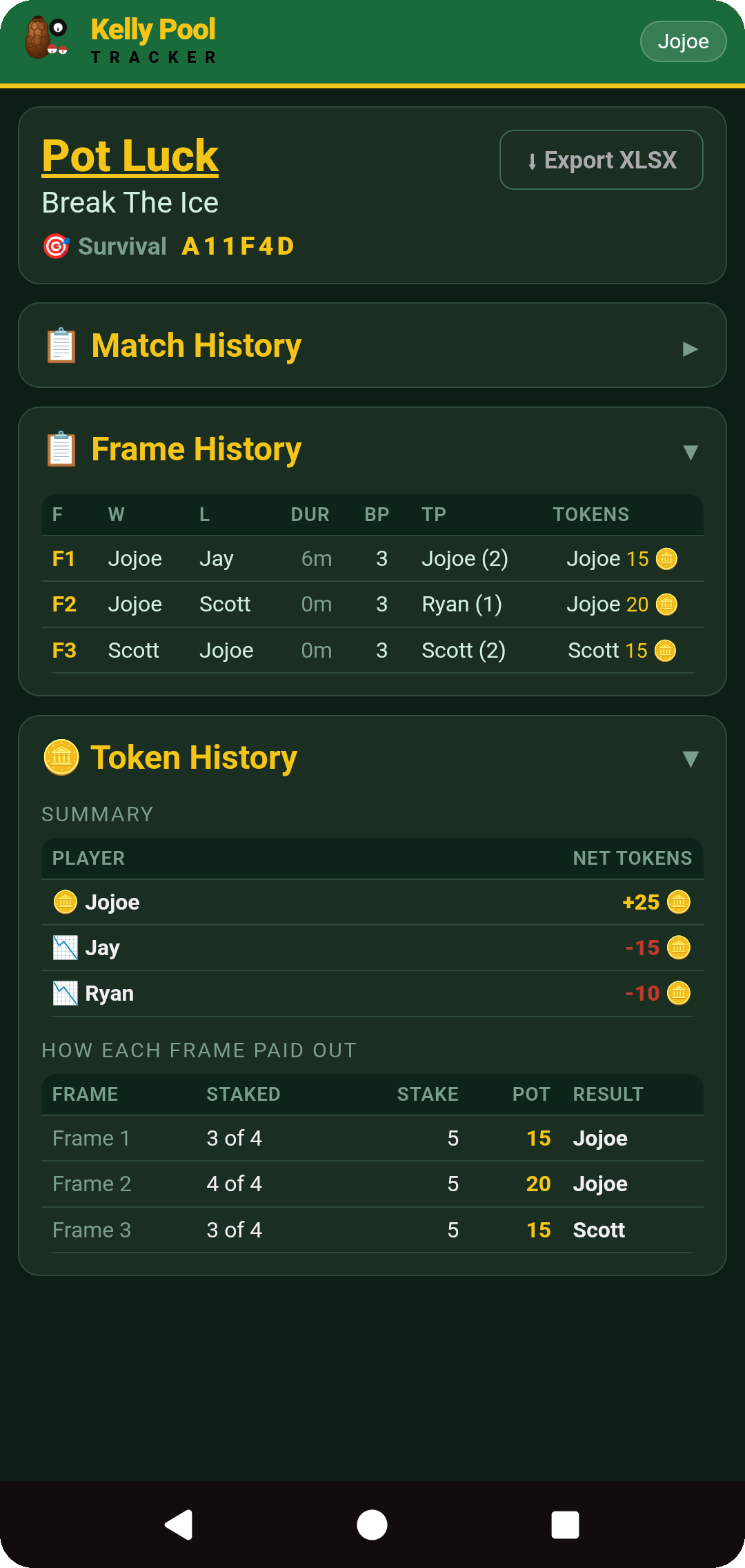
Winnings are paid out, or refunded, according to the rules of the game mode being played. Every match keeps its own Token History — net tokens won or lost per player, plus a frame-by-frame breakdown of who staked, the pot size, and who took it.
The Club Screen's Token Summary shows current balances, Club Token History logs every club transaction, and Your Token History on your account page covers your own tokens across every club — all exportable, and match token history is also included in the Export XLSX workbook.
14. Club and Player Statistics
Every settled match feeds the club's numbers, which surface in a few places:
Club All-Time Statistics
The club leaderboard, found on the Club Screen — per-player frames played, wins, eliminations dealt, total pots and overall rank. Every column sorts, and the table exports to CSV.
Club Match History
Every match the club has run, listed on the Club Screen. Opening a match shows its player summary (Match History) and its frame-by-frame log (Frame History); from there, drill into any individual frame's pot-by-pot record.
My Matches
Found on your account page — your own match history across every club you play in, with the same drill-down into each match and frame.
Venue Display Leaderboard
The club's all-time leaderboard can appear on the Venue Display between matches — see section 12.
Exports
CSV — members, club statistics and token history. XLSX — a complete match workbook including that match's frame and token history in one file.
📋 All Matches
Loading…
?
🔔 Join Requests 0
Theme
Date Format
Time Format
Your balls in a live match
Click to Show for10Seconds
You currently sign in with Google only. Setting an App Password lets you keep this account reachable if you ever lose access to Google
✉️ Change Email
Current:
🔒 Change Password
This is an app password just for Kelly Pool Tracker — not your Google password. It gives you a second way to sign in here without Google, if you ever want one.
📝 Feedback
Spotted a bug, or just have thoughts on how this could be better? Either way, this goes straight to the person who built it.
⚙️ Admin Panel
🔎 Find a Match, Club, or User
👥 Accounts
📧 Email / SMTP Settings
Configure an SMTP server so verification and reset emails are actually delivered. Gmail works great — use an App Password (not your regular password).
📨 Resend (Feedback Inbox replies)
Used only for two-way Feedback Inbox replies (on the Account Settings page) — verification/reset emails still go through SMTP. Get an API key from resend.com/api-keys, and a webhook signing secret from resend.com/webhooks after pointing it at /api/webhooks/resend-inbound.
📊 Analytics
Loading…
Trends
New Users
New Clubs
New Matches
🖥️ System
Loading…
🏆 Top 10 Users (by matches played)
Loading…
🏆 Top 10 Clubs (by members)
Loading…
✉️ Feedback Inbox
Loading…
Loading…
🏆 Clubs
Loading…
📋 Recent Match History
Loading…
🔑 Forgot Password
Enter your email address and we will send you a reset link.
🎉
Match Complete!
The match has ended.
❌
Error
🔑
Sign In to Join
You'll need to sign in or create an account before you can join this match.
📧
Verification Email Sent
🎱
Balls Per Player Adjusted
🚫
Name Already Taken
⚠️ Void This Frame?
This frame will be marked as void and won’t count toward match history or tokens. The match continues.
⚠️ End the Entire Match?
This will permanently close the match and save all stats. This cannot be undone.
👤 Add a Guest
Guests are players without a phone. You'll act for them during play, and can show them their balls from the Guests tab.
This club already has the maximum of 5 guests.
📱👤
Guests Need Their Numbers
Pass the phone to each guest and tap their name to show them their balls for this frame.
🚫
Removed from Match
The host has removed you from this match.
🚫
Request Denied
Your request to join was declined by the admin.
✅
Request Sent!
Name Already in Use
🪙
Frame Starting!
Stake for this frame:
0 🪙
Are you in for tokens this frame?
🚫 You don't have enough tokens for this stake — you'll sit this frame out unless an admin tops you up before the timer ends.
60
Waiting for others…
Player Status
If you don't respond in time, you'll be sitting out the tokens for this frame
⏳
Waiting for Approval
The admin needs to approve your request to join.
Keep this screen open — may take a few minutes if a game is in progress.
🚫
Request Denied
Your request to join was declined by the admin.
⏳
Waiting for Approval
An admin needs to approve your request to join this club.
Keep this screen open — you'll be taken straight in once approved.